How to Manage Your Password and Security Settings
Open Settings > Password & Security to review connected sign-in methods and protect the app with Privacy Lock.
Connect another sign-in method
Current versions show Google, Apple, email, and phone sign-in methods. A check mark identifies a connected method; Tap to add identifies one you can connect.
- Stay signed in to the BestInterest account containing your records.
- Open Settings > Password & Security and select the method you want to add.
- Review Add sign-in method and tap Continue.
- Complete the provider’s sign-in, or enter and confirm an email/password or verify the new phone number.
- Wait for confirmation and check that the method now shows as connected.
Any connected method signs in to that same account. Simply choosing a different button on the login screen does not connect it first. If the credential already belongs to another BestInterest account, contact support; adding a method does not merge two accounts. If confirmation is interrupted, check the connected list before retrying.
Adding phone sign-in does not change your profile’s contact phone number. Adding an Apple or other provider identity can associate that identity with the account, including when your original Apple login used Hide My Email.
If you only see the older Login Method display, update BestInterest. Until you see connected-method controls, keep using your original sign-in method.
Password and phone changes
When email/password is connected, use Reset Password to request an email. A forgotten Apple or Google password must be recovered through that provider.
Use Change Phone Number for an existing phone sign-in. For a contact-number change, see how to change your phone number.
Turn on App Privacy Lock
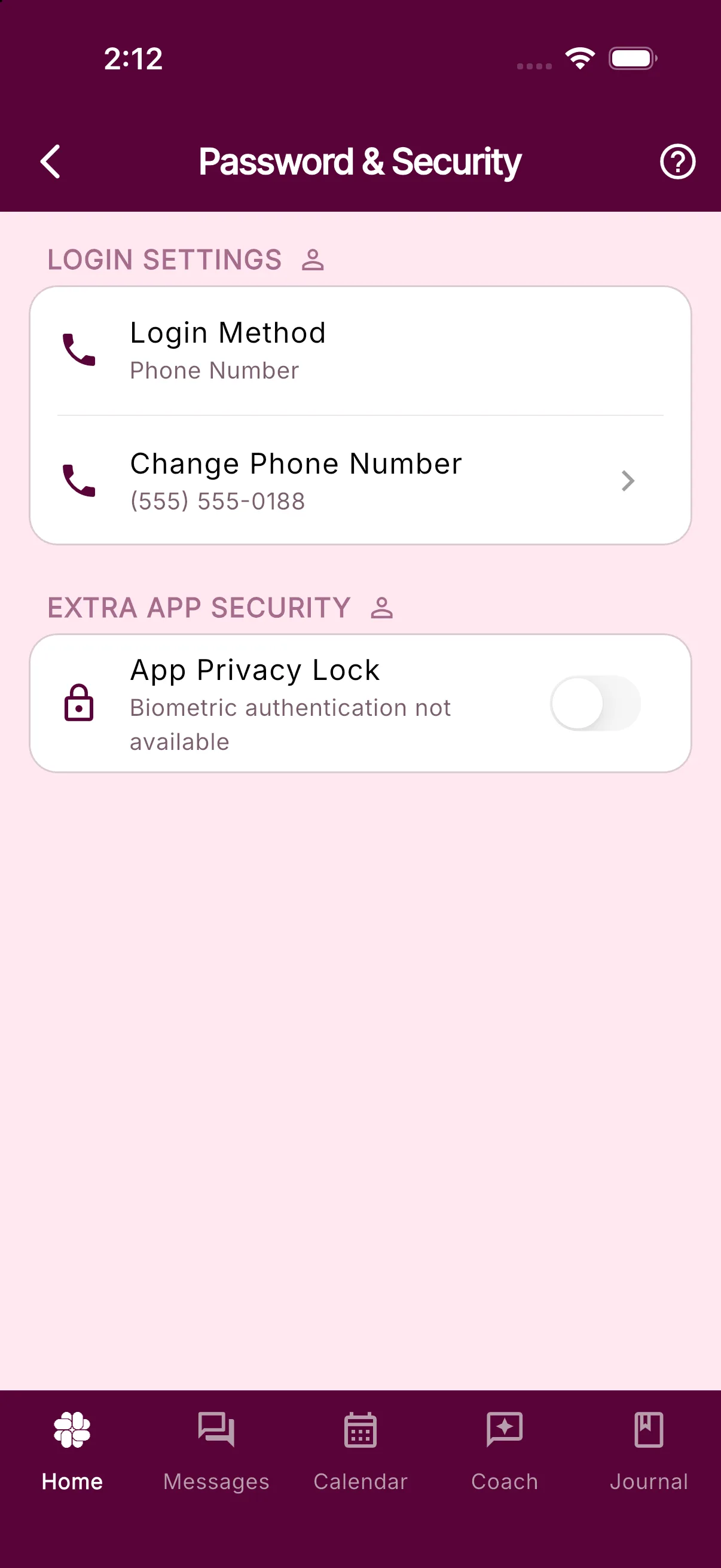
- In the BestInterest mobile app, open Settings > Password & Security.
- Turn on App Privacy Lock.
- Complete the phone’s authentication prompt.
The lock uses available local authentication such as Face ID, fingerprint, PIN, or passcode. Authentication is required to turn it on or off. Once enabled, it protects a cold start and a return after the app has been in the background for more than a couple of seconds.
Privacy Lock is available on supported iOS and Android devices, not the web app. It does not hide notification previews or prevent screenshots after unlocking. See Privacy Lock for the feature overview.
Was this helpful?
Still need help?
Contact Support