How to Use Tasks and To-Dos
Tasks & Todos keeps responsibilities in one place. Use a private list for yourself or a shared list with your connected coparent. Tasks are available without a paid plan.
Open your task lists
Tap Tasks on Home, or open More Tools > Tasks. On narrower screens, use the Shared, Private, and Completed tabs. Wider layouts can show the open shared and private lists side by side.
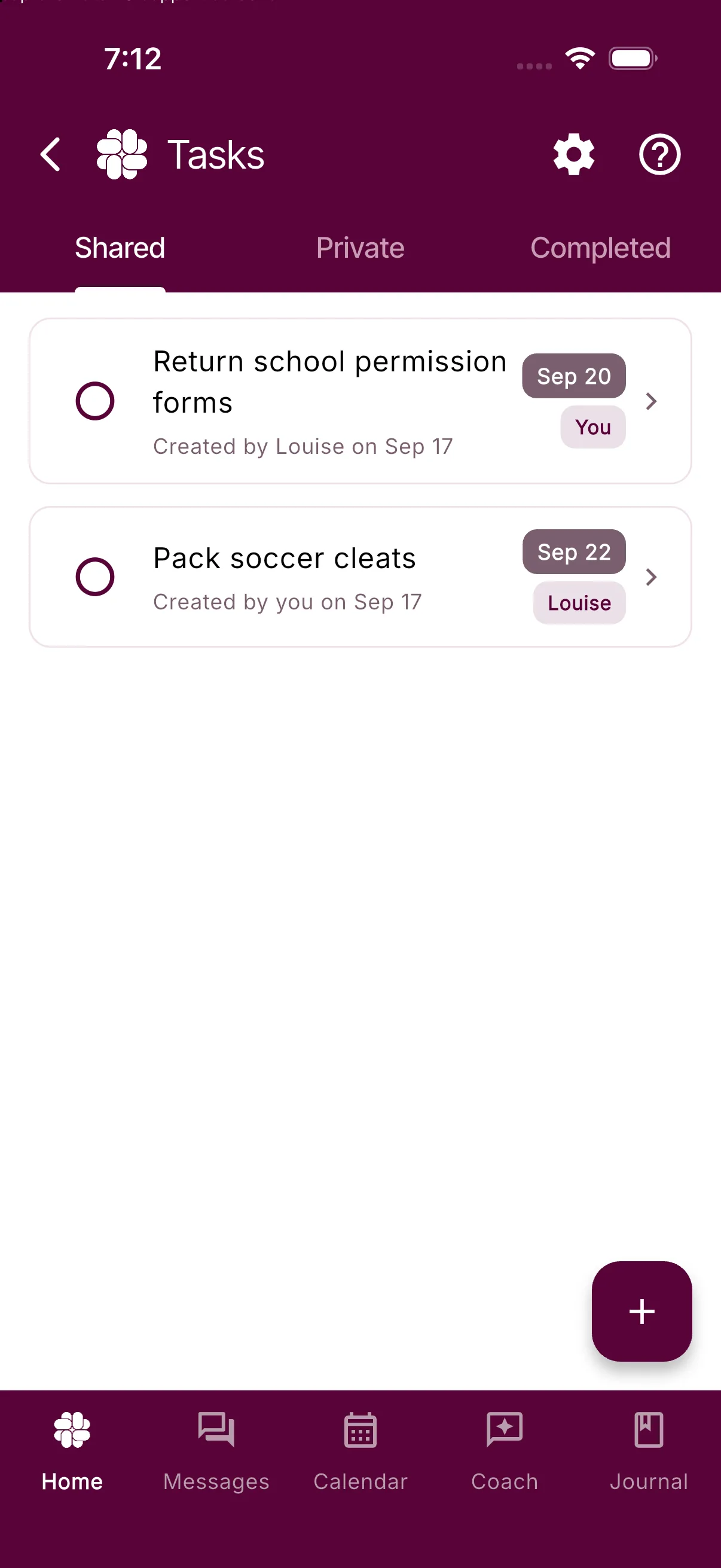
Private tasks stay private to your account. In Solo Mode, use the private list. Connecting a coparent does not automatically publish your private tasks. Shared tasks are visible to the linked parents; an unassigned shared task is still shared.
Create or update a task
- Tap + and check whether the new item is Shared or Private.
- Enter a clear task title.
- Optionally set a due date. For a shared task, choose yourself, your coparent, or No One as assignee.
- Save the task.
Tap a saved task to edit its available details or delete it. Use its checkbox to complete it; completed tasks remain available in Completed and can be reopened. Changes to shared tasks are part of the family activity record.
Each task is a one-time item. For repeating responsibilities, create another task when needed; recurring Expenses are a separate feature.
See due tasks in Calendar
Tasks with a due date appear on that date in Calendar, using the original task rather than a duplicate Calendar event. Tap the task there to open its details. Private tasks remain private, and shared tasks follow the connected family’s visibility. Tasks are not automatically copied into Journal.
Control shared tasks and notifications
Open Settings > Tasks & Todos Settings:
- Allow Shared Tasks controls creation of new shared tasks. Either parent can pause new shared activity; existing shared tasks remain available while the accounts are connected.
- Notify me about new tasks controls whether the other parent’s new shared tasks create system messages for you. Turning it off does not hide the tasks themselves. Push and email delivery have their own notification settings.
If the shared list is unavailable, check your coparent connection. Your private tasks remain usable independently.
Export tasks
Open More Tools > Reports > Tasks. You can export available private tasks or shared tasks, and choose Include Private Items when both are available. CSV export is free; verified PDFs require Connect or higher. See Task and Coparenting History reports.
Frequently asked questions
Can my co-parent see tasks I add?
Your linked coparent can see shared tasks. Private tasks remain private even when you are connected. In Solo Mode, use your private list.
Can I assign a task to my co-parent without them getting a notification?
It depends on their settings. In **Settings > Tasks & Todos Settings**, they can turn **Notify me about new tasks** on or off. When it is off, assigning a task does not create a system message, but the task still appears in **Tasks & Todos**.
What happens if a task is unassigned?
An unassigned shared task is visible to both connected parents and can be picked up by either person. A private task stays private. This can be useful for shared responsibilities or flexible items.
Can I set recurring tasks?
Not yet. Currently, each task is a one-time item, but you can re-create frequent tasks manually. Recurring task support is something we’re exploring, so let us know if you'd like to see it and how you'd use it.
Do tasks appear in the calendar or journal?
Tasks with a due date appear in Calendar without creating a duplicate event. Private tasks remain private. Tasks are not automatically copied to Journal.
What if my co-parent doesn’t use the app?
You can still use Tasks & Todos in Solo mode to stay organized. Many BestInterest users start this way—it’s a great tool for personal accountability and documentation, even without coparent involvement.
Was this helpful?
Still need help?
Contact Support