Where to Find Every Setting in BestInterest
Settings holds everything about your account, your family setup, and how each feature behaves. This page shows how to get there and what each section contains.
Open Settings
On Home, scroll below your dashboard tools and tap Settings. The same Settings button sits at the bottom of the More Tools screen.
Use the search box at the top of Settings, Find a setting or feature…, to jump straight to an item. Searching also finds items that are not listed on the screen: Pricing, Explore Features, Add Referral Code, Recent Notifications (inside Message Notifications), and, once you and your coparent are connected in Collaborative Mode and Kindness Check is available on your account, Kindness Check (inside Emotional Safety).
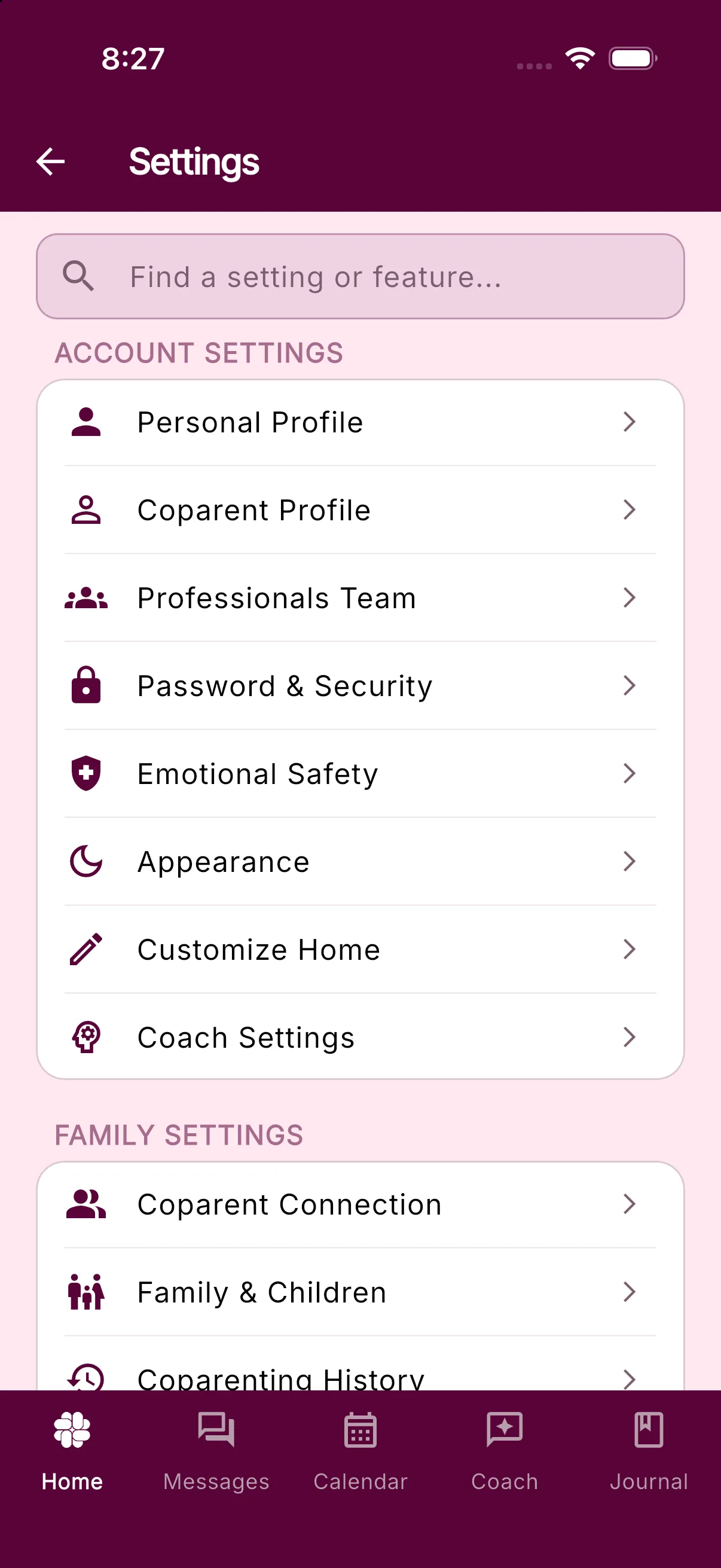
Account Settings
- Personal Profile: your name, phone number, time zone, and pronouns. See How do I change my phone number? and Pronouns in BestInterest.
- Coparent Profile: your coparent’s name and pronouns. Their phone number is under Coparent Connection.
- Professionals Team: the professionals you share records with.
- Password & Security: connected sign-in methods, password and phone sign-in controls, and Privacy Lock. See Passwords and security settings.
- Emotional Safety: control what reaches you and when. See Emotional safety.
- Appearance: to use the existing dark theme, open Settings > Appearance and select Dark. You can also choose Light or System.
- Customize Home: choose which tools appear on your dashboard and in what order (at least four). See Customize your Home dashboard.
- Coach Settings: turn Coach memory on or off. See How to use Coparent Coach.
Family Settings
- Coparent Connection: invite your coparent, switch between Solo and Collaborative Mode, and manage your BestInterest number. See How to invite my coparent and Switch between Solo and Collaborative Mode.
- Family & Children: your children and family details.
- Coparenting History: the family action timeline for changes such as tasks, expenses, documents, and membership. Relationship context questions are under Parenting Plan, as explained in Coparenting relationship info.
- Parenting Plan: upload and review your parenting plan. See Uploading your parenting plan.
Shared Logistics
- Shared Features (Collaborative Mode only): turn shared tools on or off for your family.
- Parenting Calendar: custody schedule and calendar preferences. See Custody calendar settings.
- Expense Settings: how expenses are split and shared. See Shared expenses.
- Tasks & Todos Settings: task list preferences. See How to use Tasks and To-dos.
- Custody Binder: Binder sharing preferences. See How to use the Custody Binder.
Communication Settings
- Message Notifications: push and email alerts, Smart Silence digests, and per-device options. See Message notification options.
- Message Shield: filtering for incoming messages. See Message review settings.
- Message Shield for Email: appears when email filtering is available on your plan.
- Tone Guardian: review for outgoing messages. See Tone Guardian settings.
- Boundary Line Calling (Solo Mode): call hours, voicemail, recording, and transcripts. See Calling features.
- Calling (Collaborative Mode): video and audio call options. See Video calling options.
Subscriptions
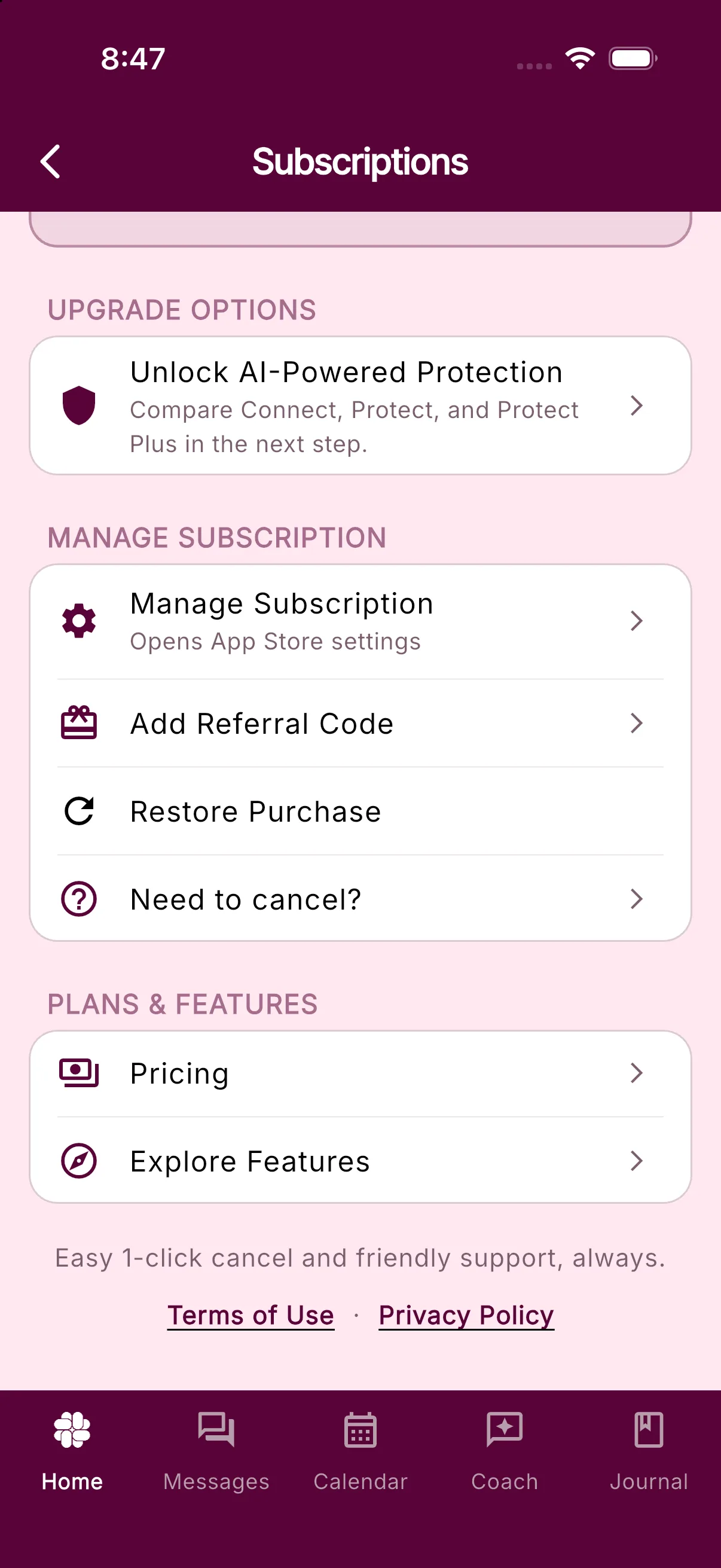
- Manage Subscription opens the Subscriptions screen: your current plan, Manage Subscription (opens App Store or Google Play settings in the mobile app; opens the cancellation guide on web), Add Referral Code, Restore Purchase, Need to cancel?, plus Pricing and Explore Features. Web purchases are canceled through the RevenueCat Billing Customer Portal linked from the billing email. See Why isn’t my subscription or upgrade showing? and Cancel my subscription.
The More Tools screen also has a Your Subscription shortcut to the same screen.
Legal
- Terms of Service and Privacy Policy.
- Privacy Options: your data and privacy choices. See How to delete your data.
- Delete My Account. See How to delete your account.
Reviews, sharing, and social links
Leave Us a Review, The BestInterest Story, Share BestInterest, Find on Instagram, Find on TikTok, and Join Referral Program live under About BestInterest on the More Tools screen, not in Settings.
Log out
Scroll to the bottom of Settings and tap Logout. The build number shown above it is useful when you contact support.
Frequently asked questions
How do I open Settings?
On Home, scroll below your dashboard tools and tap Settings. The same button sits at the bottom of the More Tools screen.
Where is my subscription?
Settings > Manage Subscription, under the Subscriptions section. Restore Purchase and Resubscribe are on that screen. More Tools also has a Your Subscription shortcut.
How do I log out?
Scroll to the bottom of Settings and tap Logout.
Why can't I find Boundary Line Calling or Shared Features?
Boundary Line Calling only appears in Solo Mode. Shared Features and Calling only appear in Collaborative Mode.
Was this helpful?
Still need help?
Contact Support