Support FAQ
Support CenterSearch every answer on one page, or choose a topic to narrow the list.
Professional Portal
Create a professional account and securely work with client-shared records.
How To Use The BestInterest Professional Portal
Open client-shared records, search messages, manage your profile, and understand Professional Portal access and notifications.
The BestInterest Professional Portal keeps each client’s approved records in a separate, read-only workspace. Start at pro.bestinterest.app and sign in with a secure email link or Google.
Open a client workspace
The Clients page lists your connected clients and pending invitations. Select View [client name] to open the records that person approved.
If both parents in a family connect with you, the family can appear once with a separate View button for each parent. Each parent controls their own connection and sharing permissions.
Choose All clients to close the workspace and return to the client list. Use Refresh clients when a recent invitation or access change does not appear.
Review shared record categories
The category choices at the top of a client workspace match that client’s sharing permissions. Depending on what the client approved, you may see:
- Messages
- Calendar
- Expenses
- Tasks
- Documents
- Journal
- Calls
- Reports
For new or updated permissions, each selected category includes private and shared records, notes, and attachments from the approving account. Older connections may retain narrower access until the client updates permissions. A connection to one parent does not provide access to the other parent’s private information.
Journal entries are available only when the client explicitly selects Journal. Coparent Coach conversations and unsent drafts are unavailable. You can review records and use the available copy, print, report, and download actions, but you cannot edit client records.
Search and move through records
Open Messages to search the selected parent’s messages. Clear the search to return to the full message history.
Use Previous page and Next page to move through longer histories. Calendar controls move between months, and Print agenda opens a printable calendar view. Solo calendars open on private events. For a collaborative calendar with both types available, use the Private/Shared view control to choose which records to review.
Available documents, message attachments, call recordings, and transcripts include their own download actions. The portal checks access again before preparing a download.
For report steps and limits, see How Professional Portal reports and downloads work.
Manage your profile
Open the account menu in the upper-right corner and choose Edit profile. You can update your name, professional type, organization, phone number, or profile image. These details appear on client invitations you send.
The same account menu includes Clients, Notifications, and Sign out.
Manage activity digests
Open Notifications from the account menu to manage activity digests. A digest contains client names and activity counts for approved categories without including record content.
When email delivery is available, you can turn digests off or choose hourly, daily, or weekly delivery. You can also choose the timezone and, for daily or weekly delivery, the delivery time and day.
If the page says email delivery is unavailable, digest delivery has not been enabled at that time. This does not indicate a problem with your account, and you can continue reviewing records in the portal.
When access changes
A client can change categories or revoke access. The portal clears affected records and checks current permissions before showing them again. Refresh the client list if the portal asks you to review updated access.
Changes block future viewing and downloads. Files or reports already downloaded to another device remain outside BestInterest and cannot be recalled.
Related articles
How Do Professional Portal Invitations And Client Access Work?
Invite a client, accept a client's invitation, and understand how each client controls Professional Portal access.
Professional Portal connections require action from both people. Either person can start the invitation, and the client always controls which record categories become available.
When a client invites you
- Open the invitation email and follow the secure link within seven days.
- Sign in to the Professional Portal using the email address that received the invitation.
- Complete your professional profile if you have not already done so.
- Choose Review and connect from the invitation link, or accept the pending client request on the Clients page.
The client chooses the categories before sending the invitation. Records appear after you accept the connection.
You can decline a pending client request from the Clients page. Declining does not create a connection or share records.
Invite a client from the portal
- Open the Clients page.
- Choose Invite a client.
- Enter the client’s email address and an optional introduction.
- Choose Send invitation.
The portal confirms that the invitation email was sent. The client opens the invitation in their BestInterest parent account, chooses what to share, and approves the connection. Nothing appears in your portal until the client completes those steps.
If an invitation email cannot be delivered, confirm the address first. If the address was wrong, send an invitation to the correct address. While an invitation to the same address is still pending, the portal will not send a duplicate. Wait for it to expire, then send a new invitation.
Use the invited email address
Invitations are tied to the recipient’s verified email address. If the portal says an invitation is unavailable, sign out and sign in with the exact address that received the invitation.
Opening a secure email sign-in link in the same browser usually completes sign-in automatically. If you open it on another device, enter the same email address when prompted.
If the invitation link expired
Invitation email links expire after seven days. Sign in with the invited email address and check the Clients page for a pending request. If no request appears, ask the sender to send a new invitation.
How clients control access
Each client selects the record categories they want to share. A selected category includes that account’s private and shared records, notes, and attachments. Journal and Calls are optional and are not selected by default. A client can later change categories or revoke access.
Existing connections retain their previously approved private/shared limits until the client updates permissions. Opening a permission screen or accepting an existing invitation does not broaden those limits.
If access changes while you are using the portal, the affected workspace is cleared. Refresh the client list to load the current permissions.
Related articles
How Do Professional Portal Reports And Downloads Work?
Generate verified reports, print calendar agendas, download approved files, and understand report limits and expiration.
The Professional Portal creates verified reports from the record categories a client has approved. Reports remain tied to that client’s current permissions.
Generate a verified report
- Open the client from the Clients page.
- Choose Reports.
- Select Messages, Expenses, Tasks, or Calls.
- For Calls, choose Solo phone calls or In-app calls.
- Enter the start and end dates.
- If the client approved private records for that category, choose whether to include them.
- Choose Generate verified report.
A report can cover up to one year. If the selected period contains too many records, shorten the date range and try again.
Check report status
Pending reports refresh automatically every 15 seconds for up to five minutes. If automatic refresh pauses, choose Refresh reports.
Completed reports show a download action. Failed reports show an error so you can correct the dates or try the request again.
Understand the monthly allowance
You can complete up to 10 reports for each represented client account per calendar month. The month follows the client’s timezone. The Reports page shows how many reports remain and whether any are still being prepared.
Failed reports release their reserved place in the allowance. Professional report use is separate from the client’s subscription report allowance.
Print calendars and download files
Calendar information uses Print agenda instead of a generated report. Open Calendar, choose the month, and select Print agenda.
Documents and approved attachments download from their record. Depending on the shared categories, this can include document files, message attachments, call recordings, and call transcripts.
When a download is unavailable
The portal checks current access before every report or file download. A download can become unavailable if the client revokes access, changes the approved categories, or the report expires.
Reports expire 90 days after they are created. An expired report remains visible in report history without a download action.
Files and reports already downloaded to another device remain outside BestInterest and cannot be recalled.
Related articles
How Do I Create A BestInterest Professional Portal Account?
Create your Professional Portal account, complete your profile, and securely access records that clients choose to share.
The BestInterest Professional Portal gives attorneys, therapists, mediators, parenting coordinators, coaches, and other professionals a secure place to review information their clients choose to share.
Create your account
- Visit pro.bestinterest.app.
- Enter your professional email address and select Continue, or choose Continue with Google.
- If you use email, open the secure sign-in link that BestInterest sends you. You can open it in the same browser or on another device; the portal completes sign-in automatically. If the link cannot be completed, the page offers Get a new sign-in link. Tap Continue to have a fresh link sent for that browser.
- Complete your professional profile with your name and professional type. You can also add your organization and a phone number clients can use to reach you.
- After saving your profile, you can add an optional profile image.
You can create an account before a client invites you. Creating an account does not by itself provide access to any client records.
Connect with a client
A client can invite you, or you can send an invitation from the Professional Portal after completing your profile. The client chooses which record categories to share and must approve access before anything appears in your portal. See How Professional Portal invitations and client access work for both invitation paths.
When an invitation arrives, sign in with the email address associated with the invitation and follow the prompts to accept it.
Edit your profile
Open the account menu in the upper-right corner and choose Edit profile. You can update your name, professional type, organization, phone number, or profile image. Your profile details appear on invitations you send to clients.
Sign in again later
Return to pro.bestinterest.app and use either a secure email link or Google. If an email link no longer works, return to the sign-in page and request a new one.
For additional help, contact the BestInterest support team.
Related articles
Getting Started
Set up BestInterest, choose how to use it, and learn the core tools.
App Won't Open, Appears Offline, Or Is Not Syncing
Fix a stuck startup screen, connection error, or delayed BestInterest update without risking duplicate records or the wrong account.
Start with the Service status and known issues page. A posted issue can save you from repeating device-level steps. If no issue is posted, continue below; the status page does not rule out a problem affecting one account or device.
If BestInterest is stuck while opening
- Confirm another website or app can use the internet on the same device.
- Switch between Wi-Fi and cellular data. If you are on public Wi-Fi, finish any browser sign-in page first.
- Close BestInterest completely and reopen it.
- Check the App Store or Google Play for a BestInterest update.
- Restart the device, then open BestInterest again.
If a VPN, content filter, or restricted network is active, try a trusted connection that does not use it. Do not disable a security control you rely on; changing networks is enough for this test.
If the app says it is offline or cannot connect
Wait until the device has a stable connection, then retry the action once. Some BestInterest operations require a current connection and cannot finish while the request is interrupted.
If one screen fails while the rest of the app works, leave that screen, reopen it, and use its Retry action when one appears. Repeated taps can create duplicate requests after a slow response, so allow the first attempt time to finish.
If recent information is not showing
Check these before recreating anything:
- Confirm you signed in with the original Apple, Google, phone, or email method. A different method can open a separate, empty account.
- Reopen the affected screen after the connection returns.
- Check whether the screen shows a pending, generating, failed, or delivery status. Follow the focused guide for that status.
- Ask the other person to confirm which account or family they updated if the missing item is shared.
Recent messages, calendar changes, tasks, expenses, and reports do not all use the same delivery path. A delay in one feature does not prove that every BestInterest service is unavailable.
Use these focused guides when they match the problem:
- Logged in but account or messages are missing
- Why didn’t my coparent get my message?
- Report or export failed or is stuck
- Subscription or upgrade is not showing
Before reinstalling
Confirm you know the original sign-in method and can access its Apple, Google, phone, or email account. Reinstalling does not recover an account opened with the wrong sign-in method.
Do not delete the BestInterest account, unlink a coparent, or recreate missing records as an offline troubleshooting step.
Contact support
If the problem continues, contact support and include:
- iPhone or Android and operating system version
- BestInterest app version
- the feature or screen affected
- the approximate time and time zone
- whether Wi-Fi, cellular data, or both were affected
- the exact error or status shown
Do not include passwords, verification codes, private messages, journal entries, or other coparenting content unless support specifically requests a safe way to provide it.
Is The BestInterest App Available On The Web?
Use nearly all BestInterest features in a computer or tablet browser, with a few device features available only in the mobile apps.
Yes. Visit app.bestinterest.app from a computer or tablet browser and sign in with your BestInterest account.
You can use nearly all BestInterest features on the web. Some device-level features require the iPhone or Android app, including:
- App Privacy Lock, which uses the device’s passcode or biometrics
- Restore Purchase for an active App Store or Google Play purchase
- Push notification delivery and system notification settings
On the web, the Restore Purchase action explains that purchases can be restored in the iOS or Android app.
You can also install BestInterest from the App Store on iPhone or Google Play on Android and sign in with the same account.
Does BestInterest Support Families With Multiple Children?
Discover how the BestInterest app streamlines co-parenting for families with multiple children, making communication and scheduling easier for everyone involved.
Yes. BestInterest supports one child or several children in the same family.
Add each child
Open Settings > Family & Children and tap Add a child you share custody of. In the sheet, add the child’s name, birthday, and pronouns, then tap Add Child. BestInterest uses those details to personalize Coach and Message Shield for your family.
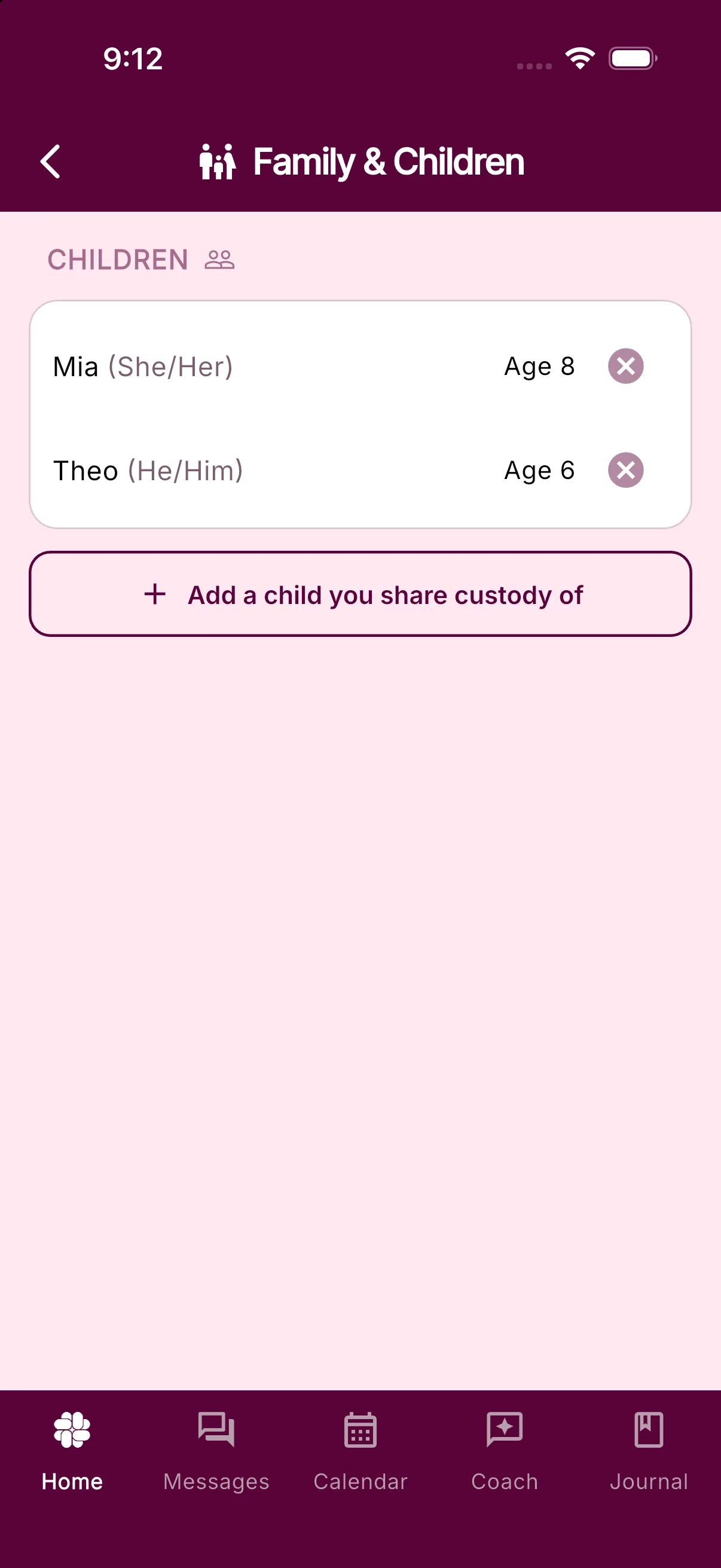
Keep messages and records organized
Messages and Journal do not have a child-selection field. Include the child’s name in the message when context matters.
In the Journal, add a tag with the child’s name when you want to organize events for that child. On eligible Protect plans, Magic Tags can suggest tags. You can then search Journal entries by tag.
You can use the Parenting Calendar, Tasks, Binder, and other shared tools for the whole family while keeping each child’s details in Family & Children.
Can I Use BestInterest Even If My Coparent Doesn’t Want To?
Discover how BestInterest enhances communication in co-parenting, offering AI-powered features that work independently, ensuring privacy and ease of use.
Yes. Choose Solo Mode to use your private Journal, Coach, Calendar, Tasks, Expenses, and Binder without linking your coparent’s account. Feature access and limits depend on your plan.
If you want to exchange texts or phone calls through BestInterest, add Boundary Line on Connect or higher. Your coparent uses ordinary SMS and calls to your assigned number; incoming Message Shield filtering requires Protect or higher.
Boundary Line messages arrive as ordinary texts without an app download. That does not guarantee your use of BestInterest is undiscoverable. See what your coparent sees and the Solo Mode setup steps.
How Do I Create A BestInterest Account?
Install BestInterest, pick a sign-in method (phone, Apple, Google, or email), then walk through the setup steps: conflict check-in, Solo or Collaborative Mode, profile, coparent, children, and notifications.
BestInterest has no separate sign-up form. You choose how you want to sign in, and the app creates your account on first use. After that, a short setup flow collects the details the app needs.
Install the app
Search for BestInterest in the App Store (iPhone and iPad) or Google Play (Android) and install it. You can also open it in a browser at app.bestinterest.app.
Choose a sign-in method
The first screen offers four buttons:
- Continue with Phone Number
- Continue with Apple (shown on iPhone, iPad, and the web version)
- Continue with Google
- Continue with Email
Choose one for your first sign-in. You can connect additional methods to that same account later under Settings > Password & Security in current versions. Until a method is connected, choosing it on the login screen can open a separate account. The app can warn you when it detects an existing account. See Why did signing in create a new empty account? if that has already happened.
Register with an email address
- Tap Continue with Email. The Create Account form opens.
- Fill in Email Address, Password, and Confirm Password. The password needs at least 8 characters with an uppercase letter, a lowercase letter, and a number.
- Tick the checkbox to agree to the Terms. Review Terms of Service and Review Privacy Policy open each document in place.
- Tap Create Account.
Already registered by email? Tap Sign in to an existing account at the bottom of the form.
Register with a phone number
- Tap Continue with Phone Number. The Phone Sign In form opens.
- Enter your phone number and tap Send Code.
- On the Enter Code screen, type the code from the text message and tap Verify. Resend code appears after a short countdown if it never arrives.
Apple and Google need no extra form. Tap the button, approve the request on your device, and you land in setup.
Complete setup
Each step saves as you go, and the Back arrow lets you revisit earlier steps.
- Conflict check-in. Tap a number from 1 to 10 on the scale between Mostly peaceful and Highly conflicted. Your answer stays private and tunes your coaching.
- Choose Your Setup. Tap Solo Mode (you use BestInterest on your own) or Collaborative Mode (you and your coparent use it together). Solo Mode shows a Meet Boundary Line note first; tap Sounds good to move on. Not sure? Compare the two modes.
- Your Profile. Enter Your Name. The form also asks for Your Email or Your Phone when your sign-in method did not supply one. Tap Next Step. Tap Have a professional referral code? if a therapist, attorney, or mediator gave you one.
- Privacy Pledge. Read it and tap Next Step.
- About Your Coparent. Enter Coparent’s Name and, if you want, Coparent’s Phone. Tap Next Step, or Skip to leave it blank.
- Coparent Connection (Collaborative Mode only). Tap Get My Invite Code and send the code to your coparent, or type the code they sent you. Tap Skip if they are not ready. Details are in How to invite my coparent.
- Your Family. Add each child’s name so coaching fits your family, then tap Next Step. Skip works here too.
- Set Your Pace. Tap Hourly Digest (Recommended), Daily Summary, Real-Time Notifications, or Disable Notifications.
- You’re ready to go! Answer How did you hear about BestInterest? and tap Let’s Get Started.
After setup
The app opens on Home. How to use the BestInterest Home screen shows where the tools live. Anything you skipped can be finished later: coparent linking and Boundary Line under Settings > Coparent Connection, children under Settings > Family & Children, and your own details under Settings > Personal Profile.
If a sign-in attempt fails or loops, work through Why can’t I log in?.
Account & Sign-in
Fix sign-in or account issues and manage your phone number, password, and account data.
Account Recovery, Verification Codes, And Sign-In Errors
Recover access when a password reset email is missing, an SMS code fails, or Apple or Google sign-in does not complete.
Start with a sign-in method already connected to your BestInterest account: Continue with Apple, Continue with Google, Continue with Phone Number, or Continue with Email. Current versions let you add methods while signed in under Settings > Password & Security. A different, unconnected method or address can open a separate empty account. See connected sign-in methods.
If you are signed in but your information is missing, follow Logged in but account or messages are missing before changing anything.
Password reset email did not arrive
Password reset applies only to accounts that use Email and Password.
- On the sign-in screen, choose Continue with Email, then tap Forgot Password.
- Enter the exact email address used for the account and tap Send Password Reset.
- Check spam, junk, promotions, and any filtering or forwarding rules for that mailbox.
- Search the mailbox for BestInterest and allow a few minutes for delivery.
For privacy, BestInterest shows the same confirmation whether or not an account exists for the address. If no message arrives, check for a typo and consider whether you originally used Apple, Google, a phone number, or a different email address.
If a reset link is invalid or expired, return to Forgot Password and request a new email. Open the link from the newest reset email and complete it once.
SMS code did not arrive or does not work
- Confirm the phone number and country code shown in BestInterest are correct.
- Make sure the phone can receive ordinary SMS messages and has a cellular connection.
- Wait for the Resend countdown to finish. BestInterest pauses resends for 30 seconds to reduce accidental duplicate requests and provider rate limits.
- Tap Resend, then enter the code from that new request.
An earlier SMS can arrive after a replacement request. The older code does not match the current verification session. If BestInterest says the code is wrong or expired, request another code instead of repeatedly submitting the same one.
If the app says there have been too many attempts, wait a few minutes before trying again. Repeated requests can extend the delay.
Apple sign-in does not complete
- Tap Continue with Apple, the same method used for the original account.
- Complete the Apple sheet instead of closing it. If you canceled it, start again.
- Check the internet connection, install any BestInterest update, then retry.
- If Apple uses a private relay address for BestInterest, keep using Continue with Apple. Typing another email address can open a different account.
If the error continues, contact support with the exact error text. Do not create a replacement account to test another method.
Google sign-in does not complete
- Tap Continue with Google and select the same Google account used before.
- Complete the Google account chooser instead of closing it.
- Check the internet connection, install any BestInterest update, then retry.
- If several Google accounts are on the device, confirm the selected address before continuing.
If BestInterest says an account exists with a different sign-in method, return to the sign-in screen and use a method already connected to that account. Add another method only after you have recovered access.
A sign-in request times out or shows a connection error
Switch between Wi-Fi and cellular data, close and reopen BestInterest, and try once more. A timed-out provider request may still finish late, so check whether the app signed in before starting another attempt.
For broader startup or connection problems, see App won’t open, appears offline, or is not syncing.
Contact support without sharing a secret
Contact support if you still cannot recover the account. Include:
- iPhone or Android
- BestInterest app version
- the sign-in method you originally used
- the approximate time of the failed attempt
- the exact error message shown
Never send support your password, password reset link, SMS code, or Apple or Google verification details.
How Do I Change My Phone Number?
Update your messaging number in Personal Profile, or change a phone number used for sign-in under Password & Security.
Where you change your phone number depends on whether you also use that number to sign in.
Change your messaging phone number
If Your Phone Number is editable in Personal Profile:
- Open Settings > Personal Profile.
- Tap Edit next to Your Phone Number.
- Tap Continue on the warning, enter the new number, and save.
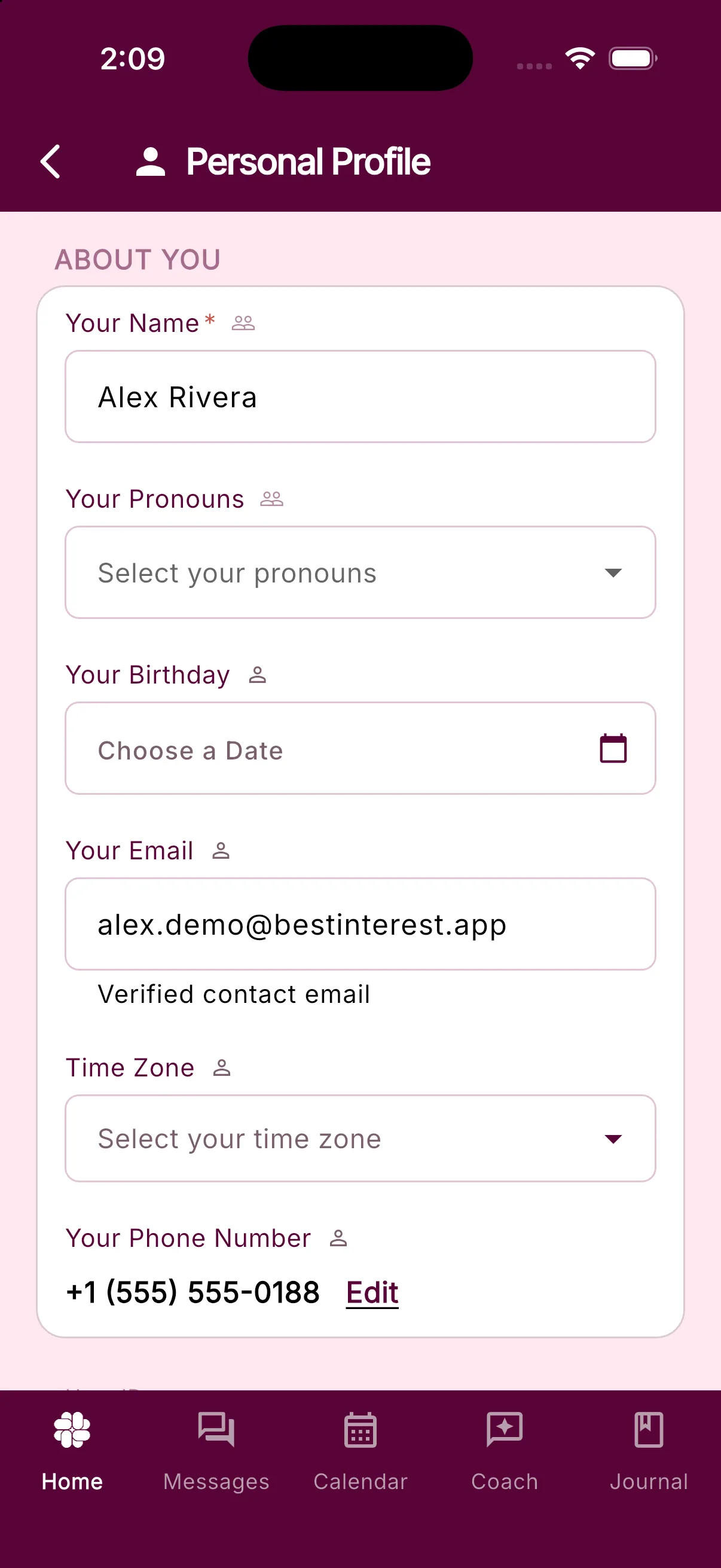
Changing this number may affect delivery of your coparent’s messages, so check it carefully before saving.
Change the phone number you use to sign in
If Your Phone Number is read-only because it is used for sign-in, change the verified sign-in number instead:
- Open Settings > Password & Security.
- Tap Change Phone Number.
- Enter the new number and tap Send Code.
- Enter the verification code sent to the new number.
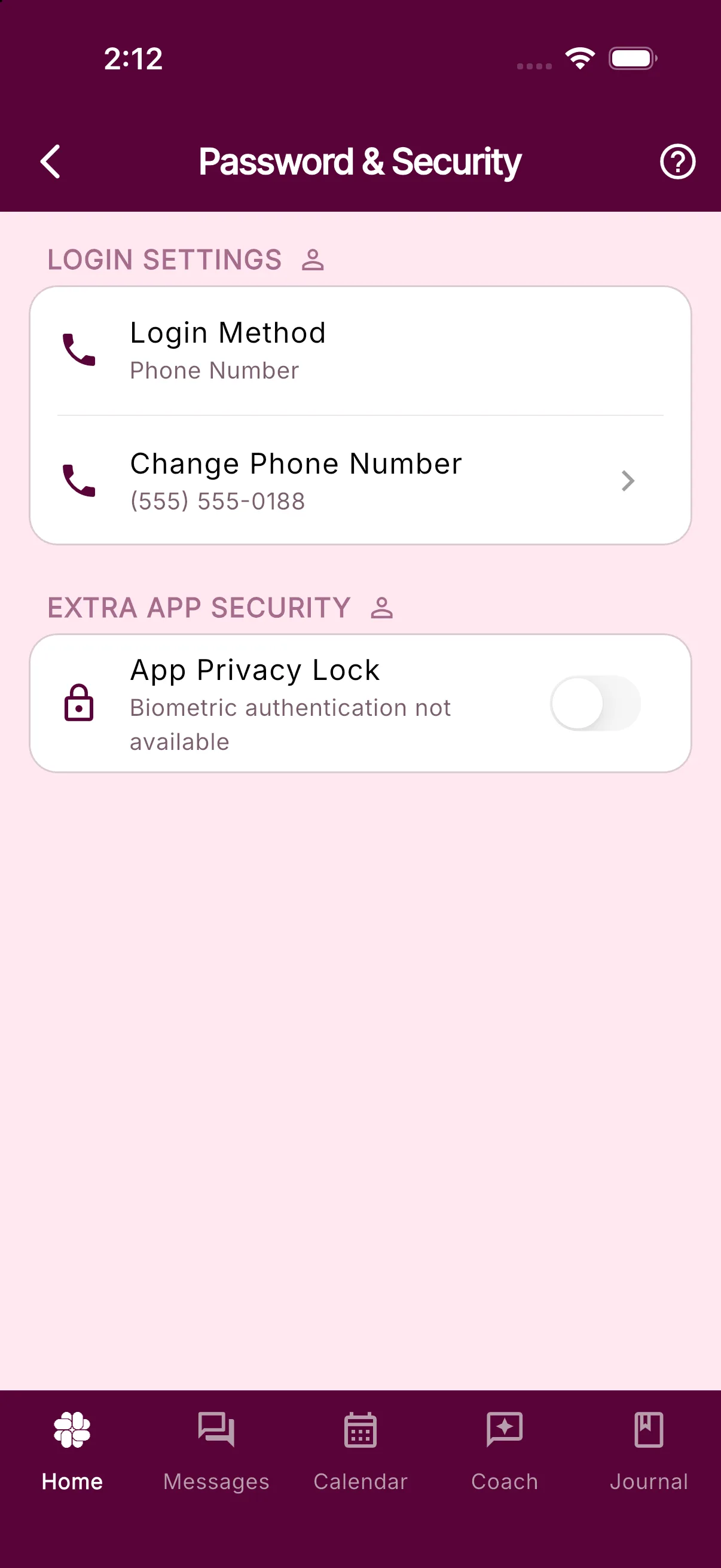
Adding a new phone sign-in method under Password & Security is different from editing your profile contact number. Review the number in each place after a change.
What if I cannot update my phone number in the app?
Each phone number can belong to only one BestInterest account. If another account already uses the number, Personal Profile may show Failed to save. Please try again. The sign-in change flow instead says This phone number is already linked to another account.
Check whether you previously created another account with that number. If you still need help, contact support so we can investigate without disrupting another account.
How Do I Delete My Account?
Delete your BestInterest account in the app, understand what happens to your data, or request deletion if you cannot sign in.
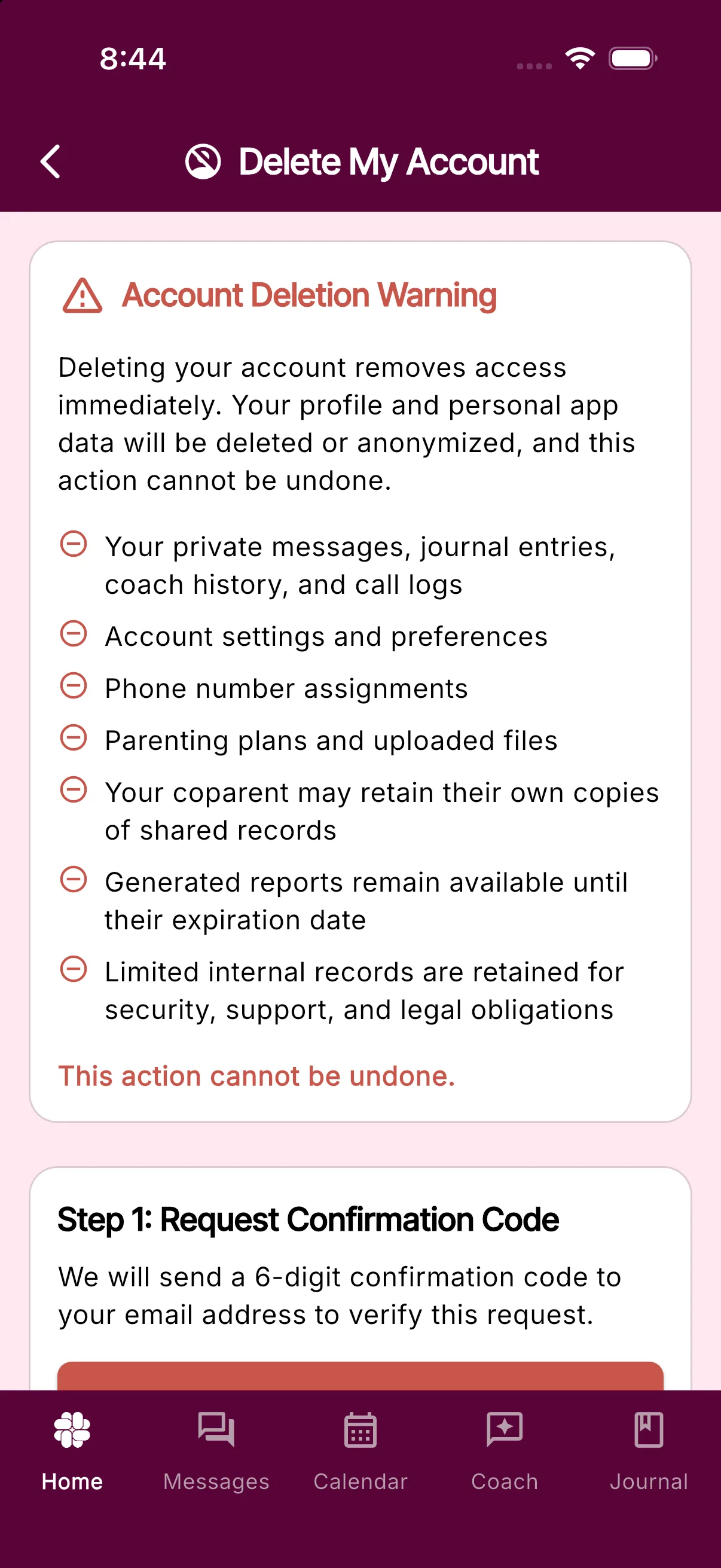
Deleting your account removes your access immediately. Your profile and personal app data will be deleted or anonymized, and the action cannot be undone.
Delete your account in the app
- On Home, scroll down and tap Settings.
- Scroll to the LEGAL section and tap Delete My Account.
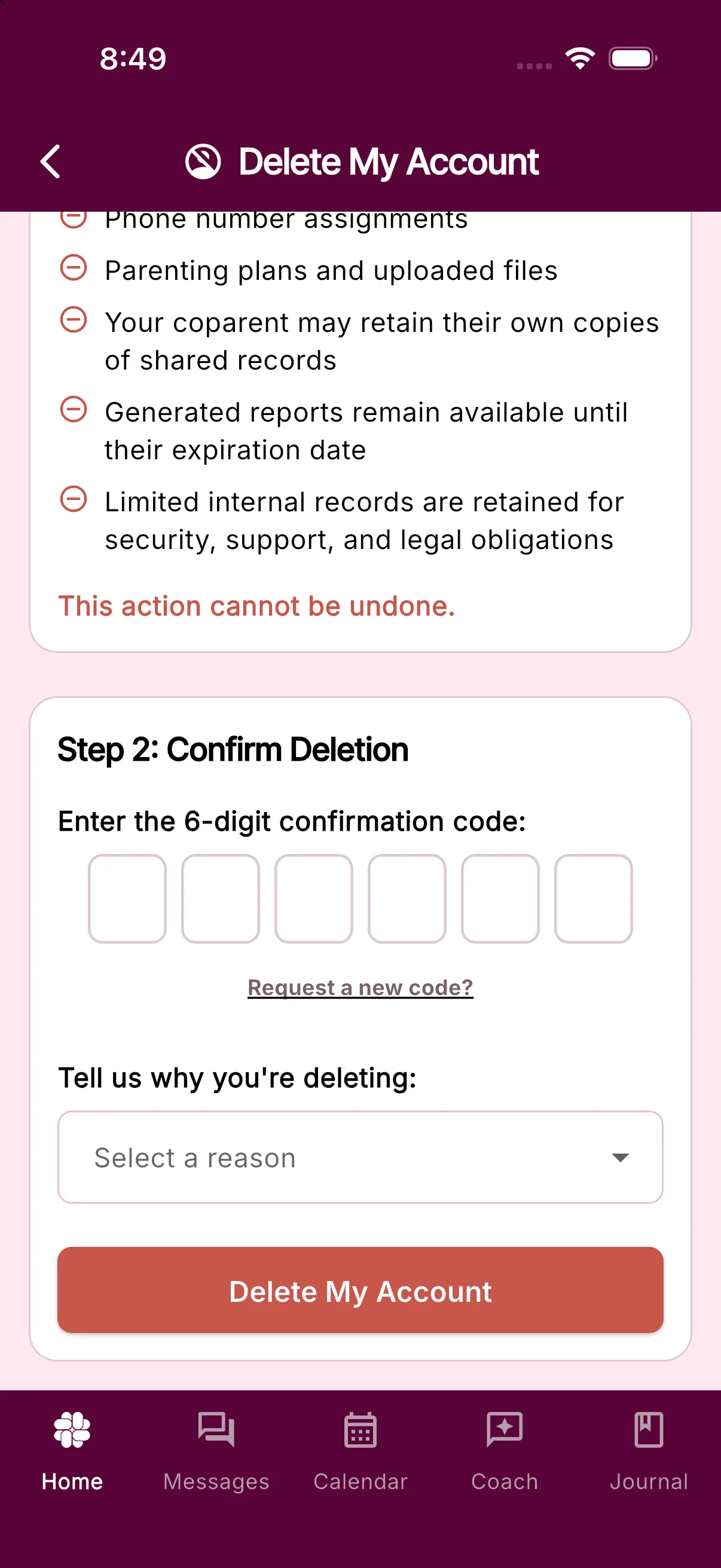
- Tap Request Confirmation Code. BestInterest sends a 6-digit code to your account email address.
- Enter the code, choose a reason, and tap Delete My Account.
- Review the final confirmation and confirm the deletion.
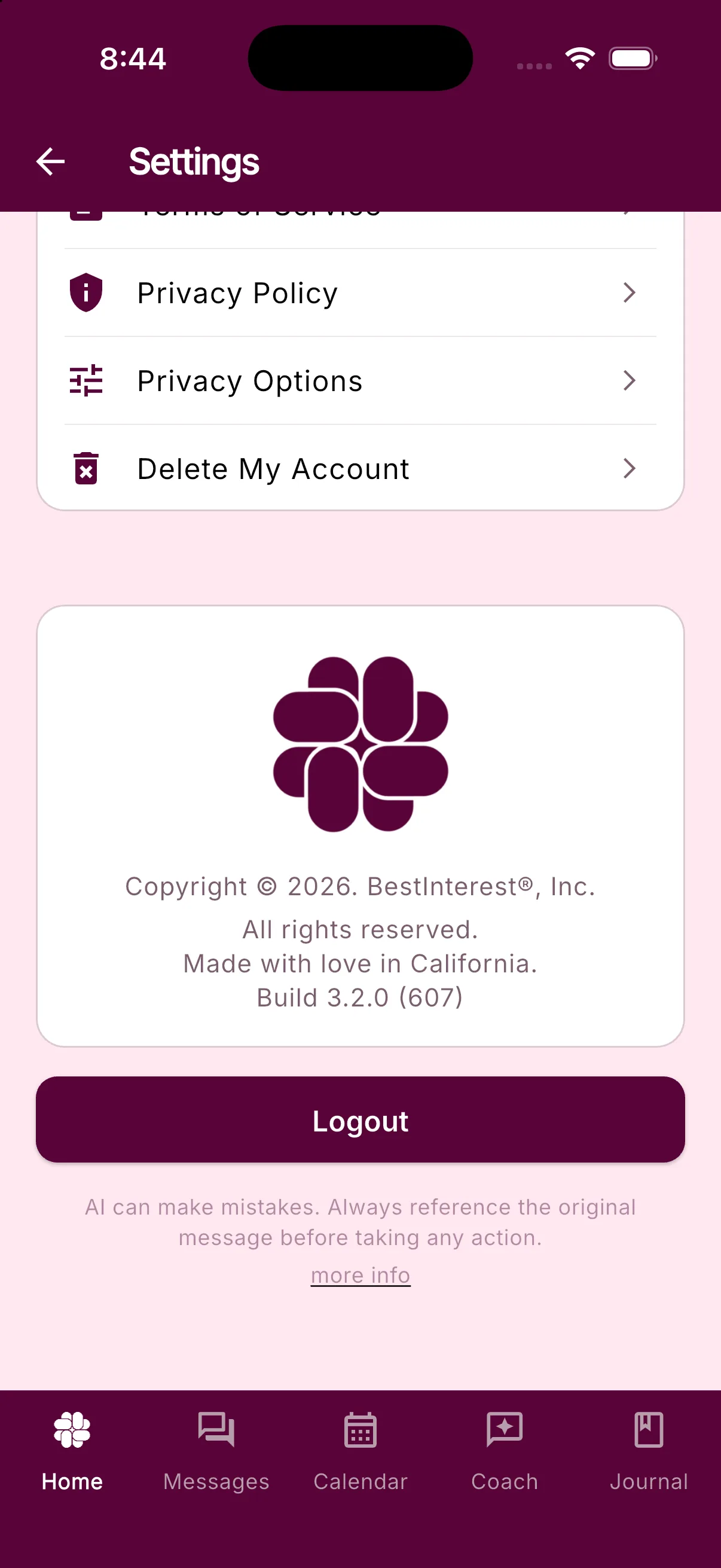
What happens to your data
BestInterest deletes or anonymizes your profile and personal app data, including:
- Your private messages, journal entries, coach history, and call logs
- Account settings and preferences
- Phone number assignments, including your Boundary Line number
- Parenting plans and uploaded files
Some records can remain after your account is deleted:
- Your coparent may retain their own copies of shared records.
- Generated reports remain available until their expiration date.
- BestInterest retains limited internal records for security, support, and legal obligations.
- Accounts belonging to professionals or other support team members remain active.
Deleting your account does not cancel an Apple, Google Play, or RevenueCat Billing subscription. Cancel through the provider that billed you before deleting your account.
If you create a BestInterest account again later, you will need to set it up again. Your phone number and email address are not permanently blocked from creating a new account.
If you cannot use the app
If you cannot sign in or prefer to request deletion manually, fill out the account deletion form.
Coparent Connection
Invite or connect with a coparent, use Solo Mode, and manage phone-number setup.
Solo Mode FAQs
Help using Solo Mode, which allows you to use the BestInterest coparenting app without your coparent.
Q: Does my coparent need to use Solo Mode or use the BestInterest app?
No. Solo Mode lets you use BestInterest privately without your coparent joining. If you add Boundary Line, their texts can flow through Message Shield and your replies can use Tone Guardian.
Q: What happens if my co-parent tries to call my Boundary Line number?
With Boundary Line in Solo Mode, your BestInterest number can be used for text messaging or phone calls. Learn more about our calling features.
Q: Will my coparent know I am using BestInterest?
Ordinary Boundary Line messages arrive as SMS or MMS without an app download. Your coparent sees your assigned number, and your use of BestInterest is not guaranteed to be undiscoverable. See what your coparent sees.
Q: How do I switch between Solo and Collaborative Mode?
Open Settings > Coparent Connection. See How do I switch between Solo and Collaborative Mode? for the steps and what changes to your coparent connection.
Why Does BestInterest Need My Coparent's Number?
Boundary Line needs your coparent's phone number to deliver messages by SMS while they continue using ordinary texting.
For many of our customers, it’s hard to get their co-parent to agree to anything — let alone using an app together to reduce conflict. That’s why we developed Boundary Line for parents using Solo Mode.
With Solo Mode, you use BestInterest by yourself. Boundary Line adds SMS communication: when you send a message to your co-parent, we deliver it to them as a text. Your messages arrive as ordinary texts from your assigned number. This does not guarantee that use of BestInterest is undiscoverable.
To make this possible, BestInterest assigns you a new dedicated phone number — one your co-parent can use to text you. You simply tell them you have a new number where they can reach you. Texts sent to that number flow through BestInterest for organization and record-keeping. Boundary Line requires Connect or higher; incoming Message Shield filtering requires Protect or higher. Texts sent to your personal number remain outside BestInterest.
Saving their number does not send them a personal message.
Entering their number does not alert or notify them in any way. You stay in full control of when and how communication begins.
Even if you’re not ready to message yet, saving your co-parent’s number helps us prepare your account in case you decide to start later.
What Is Shared With My Coparent?
Understand which BestInterest information stays private and which family records are shared after you link accounts in Collaborative Mode.
This article describes linked accounts in Collaborative Mode. In Solo Mode, there is no linked coparent account inside BestInterest.
Information that stays private
Your coparent cannot see:
- Private Journal entries
- Coparent Coach questions and answers
- Support requests or conversations with the BestInterest team
- Tags and flags you add to messages or journal entries
- Message drafts, Tone Guardian suggestions, or revisions you do not send
- Parenting Calendar events you keep private
- Notification settings and schedules
- Your email address, birthday, phone number, or other private profile details
BestInterest can use private account context to personalize features for you. That context and your Coach conversations are not copied to your coparent.
Messages and read status
Your coparent sees the final messages you choose to send. BestInterest does not send a draft or suggested rewrite until you tap the send action.
When you read a message, its sender can see the Read status and timestamp.
Shared family information
After accounts are linked, both coparents can access shared family records, including:
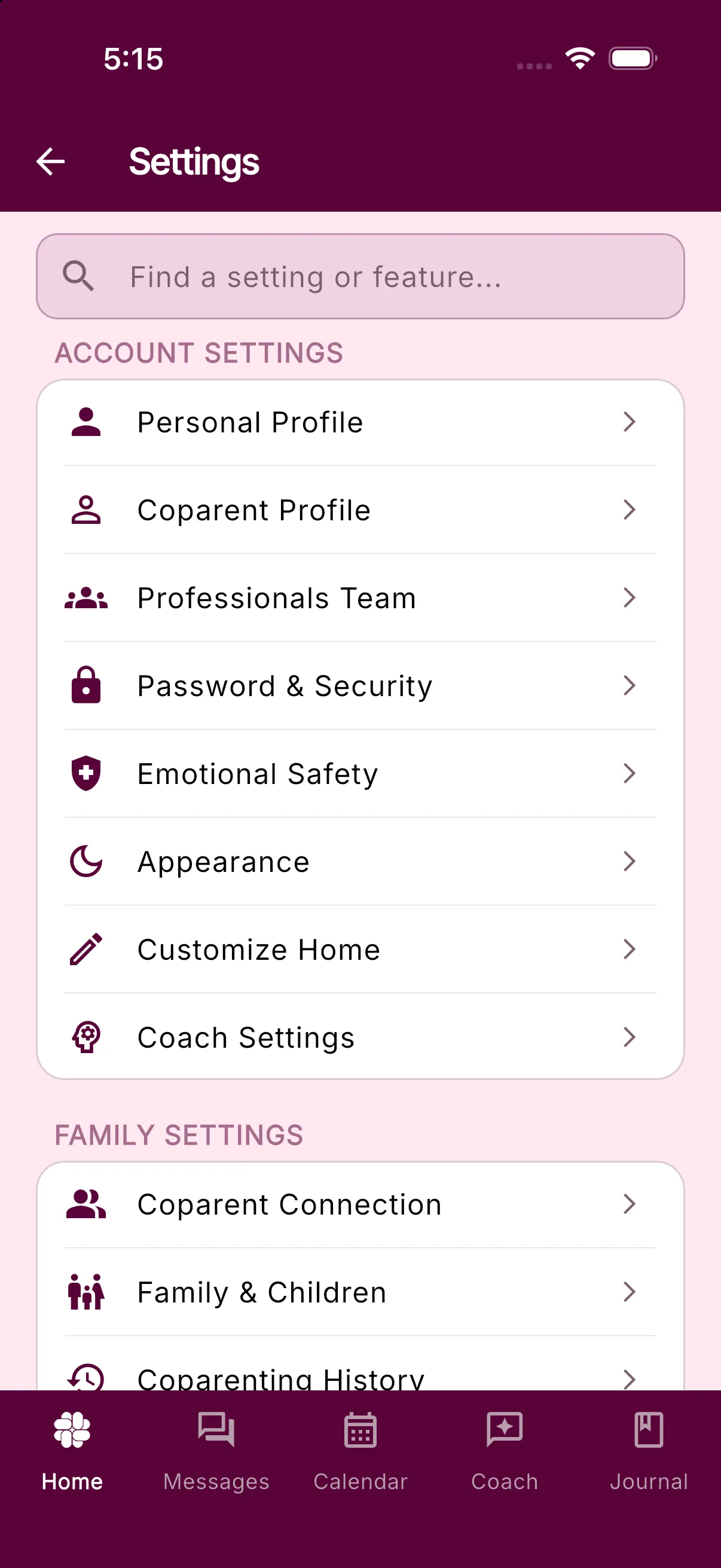
- Family and custody details under Settings > Family & Children
- Events placed on the shared Parenting Calendar
- Shared Tasks, Photos, and Binder items
- Shared expenses and reimbursement requests
BestInterest labels the pronoun fields for you, your coparent, and your children as shared settings. In Collaborative Mode, treat these fields as visible to your linked coparent.
Your uploaded Parenting Plan and its review are private. You can offer a reviewed copy to a connected coparent, who must choose to use it. Their accepted copy belongs to their account.
Account-linking details
Your linked coparent can see your first and last name and a broad range for your recent app activity on their Settings > Coparent Connection screen. The app labels that activity Last Login and uses ranges such as Today, Last 2 days, Last week, Last month, or More than a month. It does not show your subscription tier or internal BestInterest User ID.
If a Family Subscription covers your account, this screen may also explain the coverage and what disconnecting would change without showing your coparent’s subscription tier.
Only add information to a shared area when you are comfortable with your linked coparent seeing it.
Does BestInterest Support Having Multiple Coparents?
BestInterest currently connects two parent accounts in one family, with several children supported but no multi-family account switcher.
BestInterest currently connects two parent accounts in one coparenting relationship. You can add several children to that family, but there is no in-app family switcher or way to connect several coparents to one account.
Adding a professional to your Professionals Team is a separate sharing connection; it does not add another parent to the conversation or family.
Do not disconnect an existing coparent or create duplicate accounts as a workaround without understanding what will happen to your records, phone numbers, and subscription. If you need to manage children across different coparenting relationships, contact support with the setup you need so we can explain the current options.
For multiple children within the same family, see families with multiple children.
How Do I Invite My Coparent To Join?
Use Boundary Line to text a coparent who will not join, or invite them to connect with you in Collaborative Mode.
With Boundary Line in Solo Mode, you can communicate with your coparent without them needing to use the app. All you need to do is ask your coparent to change the phone number they use to reach you.
However, if your coparent is interested in using the app with you, we offer Collaborative Mode, where you both use the app. Simply follow these steps to enable it:
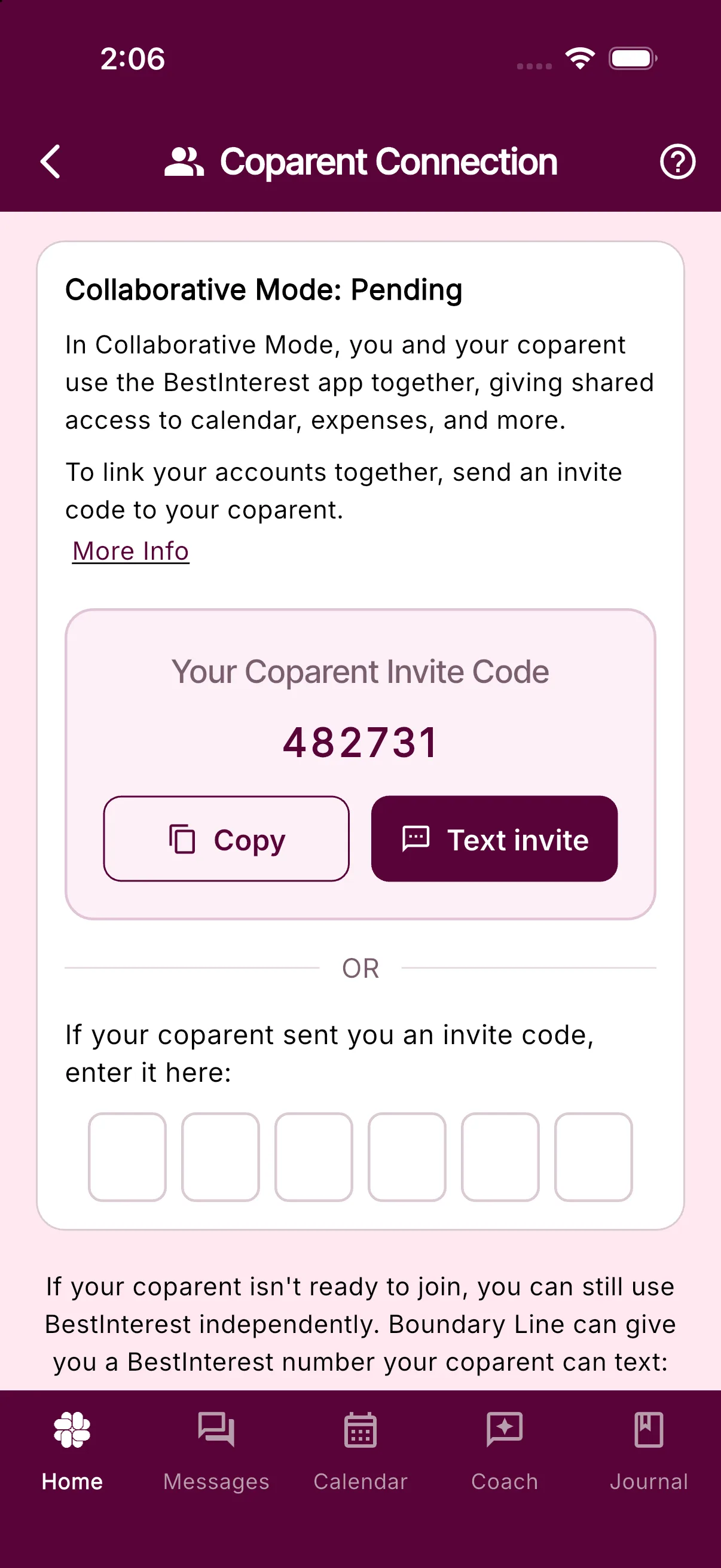
- Open Settings > Coparent Connection
- Tap “Switch to Collaborative Mode” if you see that button.
- Tap Get My Invite Code
- Send the code to your coparent. If their number is saved, the card offers to text it for you.
- Your coparent downloads the app, chooses Collaborative Mode during setup, and enters your code on the Coparent Connection step. They can also enter it later under Settings > Coparent Connection.
- Once those steps are completed, your accounts are connected!
Your coparent can start with the free plan; they do not need a paid subscription to connect with you. See plans and pricing for current feature availability.
What Phone Numbers Do You Support For Coparent Communication?
Learn which coparent phone numbers Boundary Line supports and what to do when SMS service is unavailable in your country.
A coparent phone number is required to set up Boundary Line in Solo Mode. Private Solo tools and a Collaborative Mode invite-code connection do not require entering a Solo coparent number.
Supported regions
Boundary Line currently supports eligible numbers in the United States, Canada, Australia, United Kingdom, Puerto Rico, Guam, Bahamas, Barbados, Cayman Islands, Dominican Republic, Jamaica, U.S. Virgin Islands, and Bermuda. Assignment depends on available numbers and service support; a supported country does not guarantee a particular local area code.
Enter the full number with the correct country code under Settings > Coparent Connection. Boundary Line requires Connect or higher. Incoming Message Shield filtering requires Protect or higher.
If the app cannot assign a number, confirm the country code and follow the displayed message. Contact support if the number is valid but setup still fails.
If Boundary Line is unavailable
You can continue using private Solo tools or invite your coparent to Collaborative Mode for in-app communication over the internet. Collaborative Mode does not depend on a Boundary Line number.
Will My Ex Know My Message Is Coming From An App?
Discover how the BestInterest app enhances coparent communication, ensuring messages appear as regular SMS while keeping your conversations organized and child-focused.
In Solo Mode with Boundary Line, messages you send arrive as ordinary SMS or MMS from your assigned BestInterest number. Your coparent does not need to install an app, and the ordinary message body does not carry BestInterest branding.
That does not guarantee that your use of BestInterest is undiscoverable. Your coparent sees a different phone number, and phone services, carrier notices, links you share, or information you choose to send can reveal the service. Share only what fits your situation.
Their replies to the Boundary Line number appear in BestInterest. Texts sent to your personal number remain in your regular messaging app. See where messages arrive.
In Collaborative Mode, both parents use BestInterest and know they are connected in the app. You can invite your coparent when you both want to use shared tools.
Why Does BestInterest Say My Coparent's Number Is Already Used?
Learn why BestInterest shows Number Already In Use and how to continue safely in Solo or Collaborative Mode.
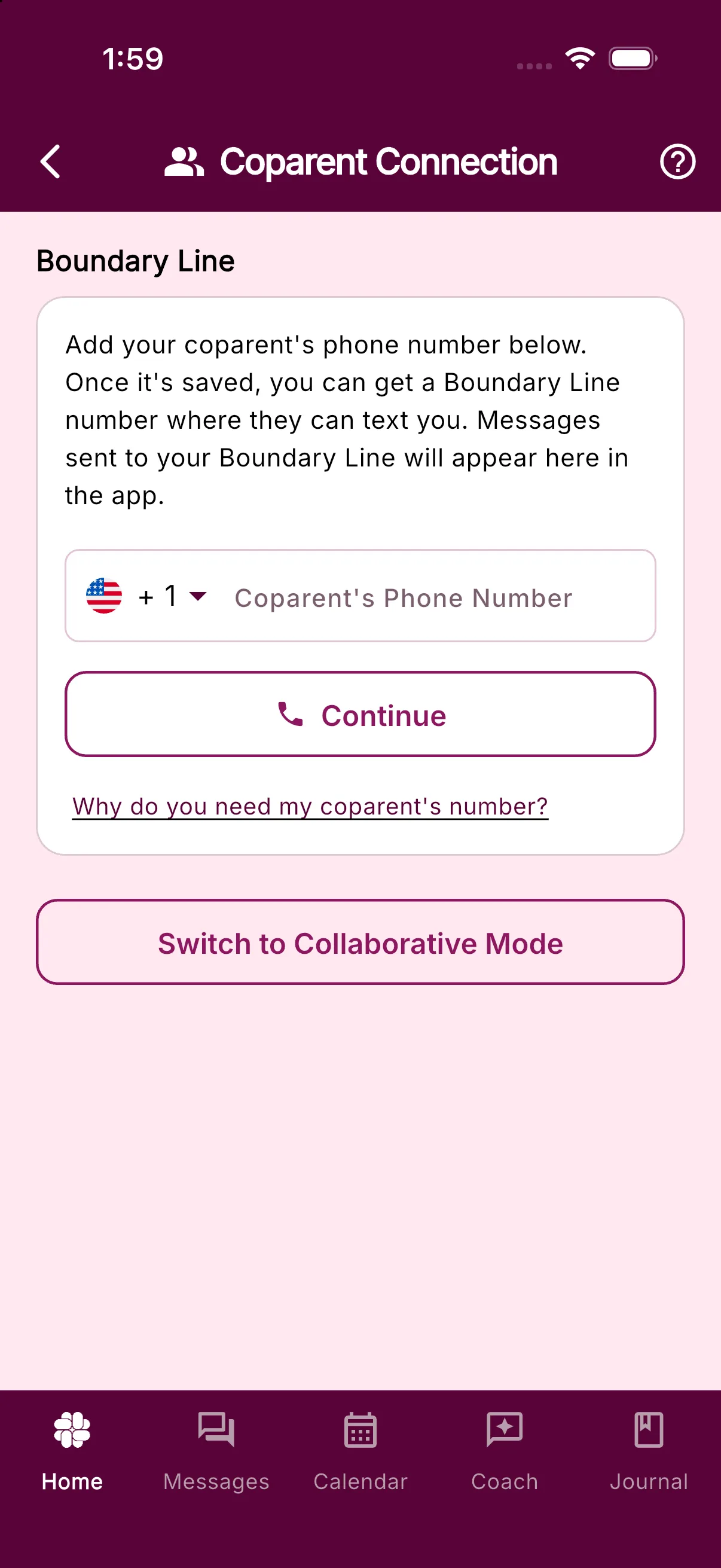
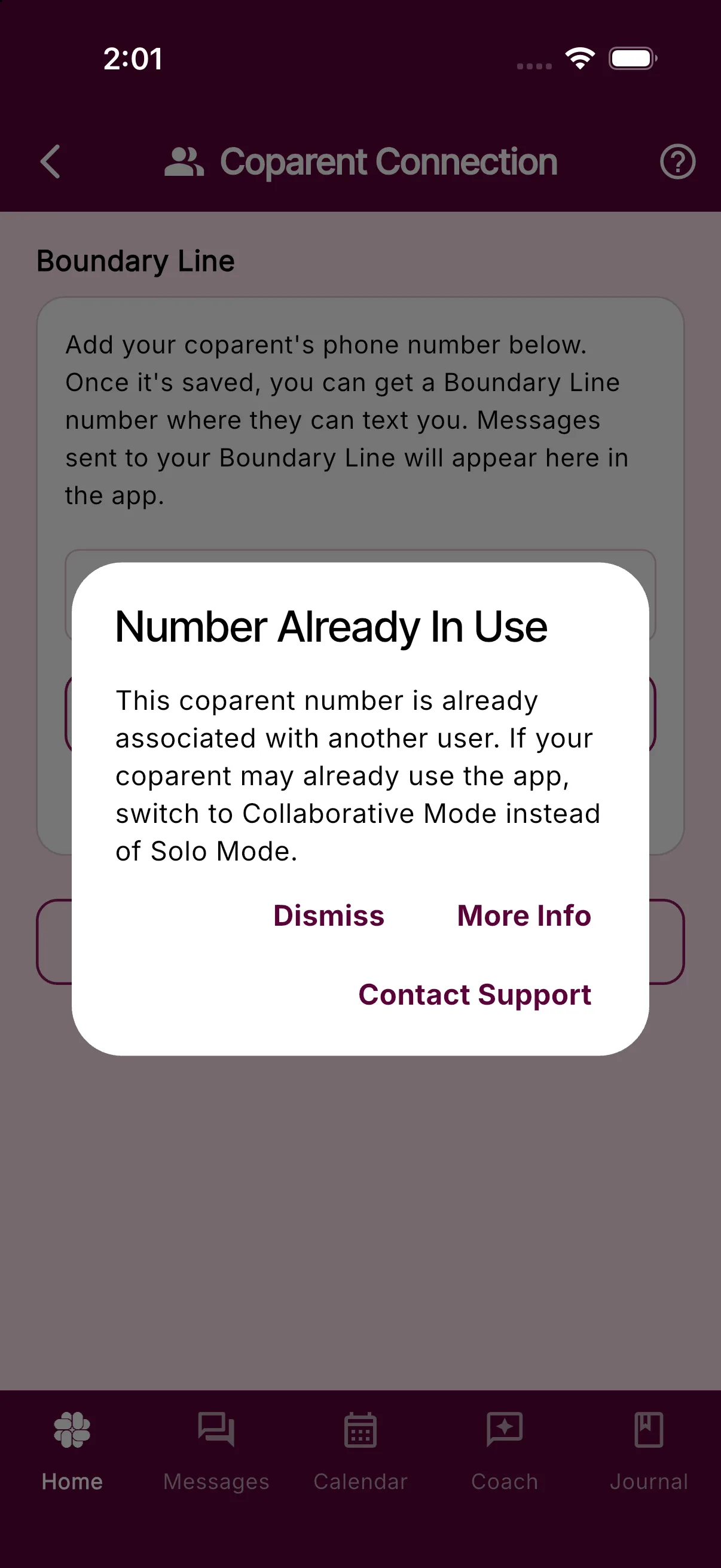
If you enter your coparent’s phone number in Solo Mode and see Number Already In Use, the number is already associated with another BestInterest account or another user’s coparent entry. BestInterest does not automatically remove a number from an existing account or family because doing so could disrupt someone else’s access or messages.
If your coparent uses BestInterest
Use Collaborative Mode to connect your accounts instead of entering their number as a Solo Mode coparent:
- Open Settings > Coparent Connection.
- Follow the instructions to switch to Collaborative Mode and invite or connect with your coparent.
You do not need to enter your coparent’s number in the Solo Mode phone field when you are connecting your accounts.
If you want to stay in Solo Mode
The number may have been entered as a coparent number on another account. For example, while testing the app, your coparent may have entered their own number instead of yours.
Ask them to open Settings > Coparent Connection and check the coparent number they entered. It should be your number, not their own. They should only change it if they recognize the mistake and are sure the replacement is correct.
If the number may belong to an old account, an account you do not control, or another family, do not try to work around the restriction. In the Number Already In Use dialog, tap Contact Support, or contact support. Include your account email, your coparent’s number, and the exact message you see. Support can verify the account state before deciding whether the number can be changed safely.
You can also tap More Info in the dialog to reopen this guide.
Messaging & Notifications
Send and review messages, manage delivery, filters, alerts, and attachments.
Message Shield For Email: Setup And Troubleshooting
Set up a private forwarding address, verify manual forwarding, and troubleshoot email imports without contacting your coparent.
Availability: Message Shield for Email is available in BestInterest version 3.2 or higher and requires Protect.
Message Shield for Email brings incoming coparent email into your private BestInterest timeline. Message Shield can soften harmful language before you read it, and the imported messages can be organized and searched with your other records. BestInterest does not email your coparent.
Setting up Email Shield requires Protect. If Message Shield for Email does not appear under Settings > Communication Settings, update BestInterest to version 3.2 or higher and reopen Settings.
If Protect later becomes inactive, an enabled Email Shield channel can continue importing original wording without Message Shield filtering. Restore Protect or remove the forwarding rule in your email provider if you do not want unfiltered email imported.
Set up Email Shield
- Open Settings > Communication Settings > Message Shield for Email.
- Enter your coparent’s primary email address. Add up to two other addresses your coparent uses.
- Confirm the email address where your coparent’s messages arrive. BestInterest starts with your account email, but you can replace it with another mailbox.
- Wait briefly while BestInterest saves each valid field automatically and creates your forwarding address.
- Tap the bordered forwarding address to copy it.
If the screen says the app cannot display the current consent, update BestInterest before continuing. If the setting is still missing in version 3.2 or higher, contact support.
Verify the email address you forward from
Automatic provider rules do not require this BestInterest verification step. Manual forwarding does. Gmail separately asks you to confirm the forwarding destination; complete that confirmation in the Gmail steps below even if you have verified your mailbox here.
- Under Where will you forward messages from?, tap Send Verification Code.
- Enter the six-digit code sent to that email address and tap Verify. The code expires after 30 minutes.
If you change the forwarding mailbox, wait for the new address to save before requesting a code. Verification applies only to the currently saved mailbox.
Set up Gmail to forward only one sender’s email
Use Gmail in a web browser on a computer for this setup. These settings are not available in the Gmail mobile app. Sign in to the mailbox where you receive your coparent’s email.
You will add your private BestInterest address as a destination, then create a filter for your coparent’s sender address. Keep forwarding for all incoming mail turned off so unrelated email stays in Gmail.
1. Add and confirm your BestInterest forwarding address
- Copy your private forwarding address from Message Shield for Email in BestInterest.
- In Gmail, click the Settings gear > See all settings.
- Open Forwarding and POP/IMAP (or Forwarding).
- Click Add a forwarding address, paste your private BestInterest address, then click Next > Proceed > OK.
- Gmail sends a confirmation message to that private address. Return to BestInterest and reopen Message Shield for Email to refresh its status. Tap Confirm Gmail Forwarding when it appears, then complete confirmation on Google’s page. If Google asks you to sign in, use the Gmail account you are forwarding from.
- Return to Gmail and refresh the settings page. Leave Disable forwarding selected for account-wide forwarding. If you changed that setting, click Save Changes. The sender filter below handles forwarding to BestInterest.
If Confirm Gmail Forwarding has not appeared, wait briefly and reopen the Email Shield screen. If your BestInterest address is missing from Gmail’s forwarding choices, finish confirming it before creating the filter.
2. Create a filter for one coparent email address
- In Gmail’s search bar, click Show search options (the sliders icon).
- In From, enter your coparent’s full email address, for example
coparent@example.com. Use the same address you saved in BestInterest. Leave the other search fields blank to include all new email from that address. - Optional: click Search to check the matching messages, then reopen Show search options.
- Click Create filter. In the action list, check Forward it to and choose your private BestInterest address.
- Click Create filter again to save it.
This forwards new mail matching that sender filter. It does not forward older matching messages, even if you see an option to apply the filter to existing conversations. Gmail excludes spam from forwarding.
If your coparent uses another address, save it in BestInterest and repeat the filter steps for that address. Each filter should have one coparent address in From and your private BestInterest address as its forwarding destination.
3. Check, change, or stop the Gmail filter
Open Settings > See all settings > Filters and Blocked Addresses to find your filter. Check its sender and forwarding destination. Use edit to change it and save with Update filter, or delete to stop that filter’s future forwards. Disabling account-wide forwarding alone does not remove a forwarding filter.
Check the next new email from the configured coparent address against the Email Shield status below. You do not need your coparent to change how they send email.
Google’s guides: forwarding settings and creating and managing filters.
Use another email provider or forward a message manually
For another provider, create a rule with From / Sender is set to your coparent’s full email address and Forward to set to your private BestInterest address. Save the rule for new incoming mail. Choose a sender-specific rule rather than forwarding your entire mailbox; repeat for any additional coparent addresses saved in BestInterest. Menu names vary by provider.
To forward one email manually, first complete Verify the email address you forward from above. In that verified mailbox, open an email from a coparent address saved in BestInterest, choose Forward, enter your private BestInterest address in To, and send it.
Check whether forwarding is working
The Email Shield screen shows Waiting for the first forwarded message until one arrives. It changes to A forwarded message has arrived after BestInterest accepts a message.
If a message is missing:
- Confirm that the original sender address exactly matches one of the coparent addresses saved in Email Shield.
- Confirm that your provider rule uses the current private forwarding address.
- Check spam and provider-side forwarding logs. Gmail does not forward spam through a filter.
- Open Email Shield and review any paused, queued, safety-limit, or unexpected-sender status.
- Forward a new test message from the configured sender. Adding a rule does not import older email.
Messages stopped by a safety limit are not shown as unfiltered messages. The originals remain in your email account. If the status continues after the displayed reset time, contact support and include the approximate send time and sender domain without copying private message content into the request.
Reset the forwarding address
Tap Reset private email address to invalidate the old address immediately. Update every provider rule with the replacement address.
Imported email remains private to you, including in Collaborative Mode. See Message Shield settings for how filtered and original wording appear in BestInterest.
Can My Coparent See My Message Drafts?
No. Your coparent cannot see message drafts or Tone Guardian feedback. Only the final message you choose to send is shared.
No. Drafts are never shared with your coparent.
This includes:
- What you type before requesting a Tone Guardian review
- Tone Guardian’s feedback and proposed rewrite while you review it
- Changes you make while reviewing the suggestion
- Drafts you save to finish later
What Can My Coparent See?
Your coparent can see only the final message you choose to send. If you use a Tone Guardian suggestion, they see that wording only after you choose it as the final message and send it. They do not see that it began as a suggestion.
If you close Tone Guardian without sending, save the message as a draft, or discard it, nothing is added to your shared message history.
BestInterest and Tone Guardian process the draft so the app can save it or provide feedback. That processing does not share the draft with your coparent or add it to the co-parenting message record.
What Happens When Tone Guardian Is Off?
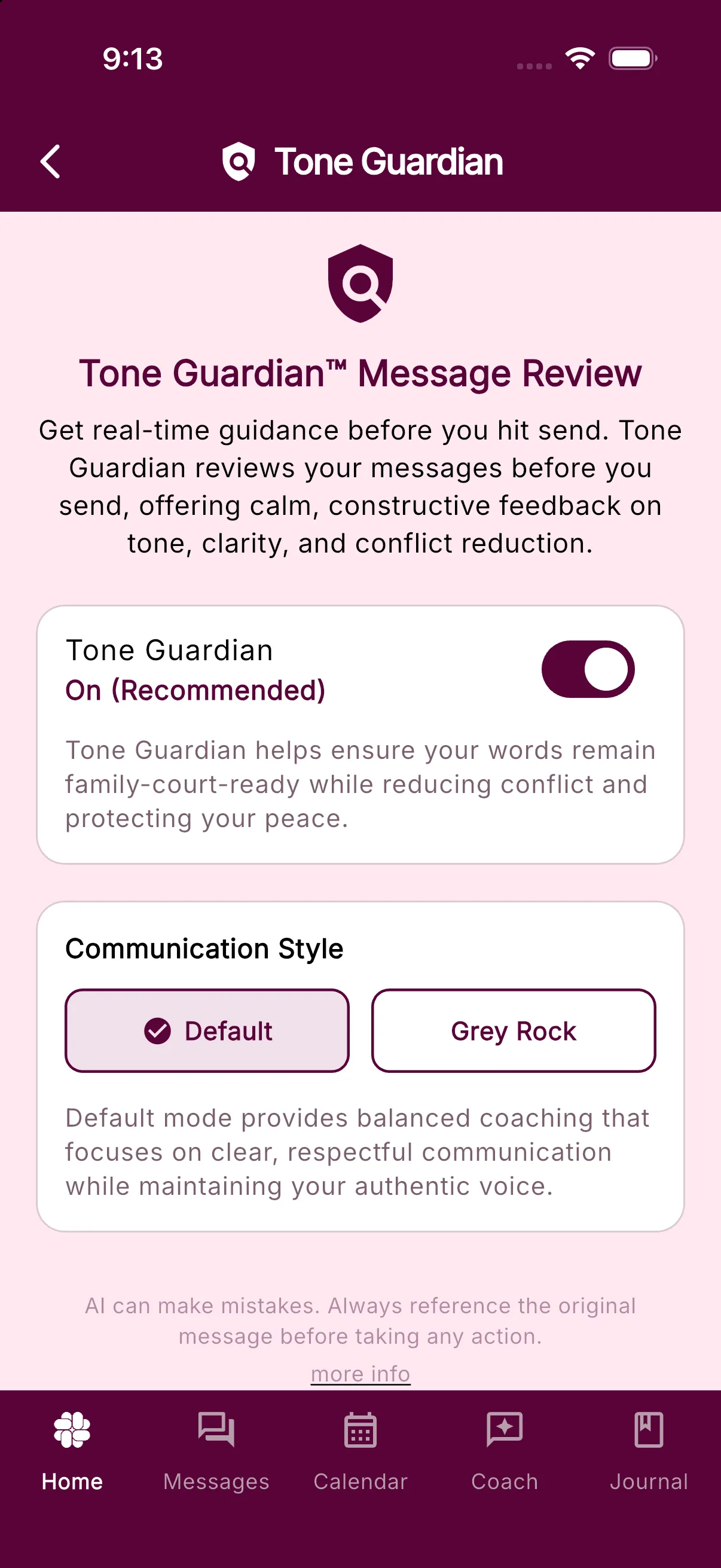
For a normal new text message, turning Tone Guardian off makes the compose button read Send Message and sends immediately. When Tone Guardian is on, that button usually reads Review Message and opens the review first. Existing drafts, ready replies, image-only messages, accepted quick responses, and other review-bypass cases may still show Send Message even when Tone Guardian is on. You can change the setting in Settings > Tone Guardian.
Learn more about Tone Guardian or adjust your Tone Guardian settings.
What Is A System Message?
Learn why BestInterest creates system messages, which activity they describe, and what happens when you tap one.
A system message is created automatically by BestInterest. It appears in a different color from messages written by you or your coparent.
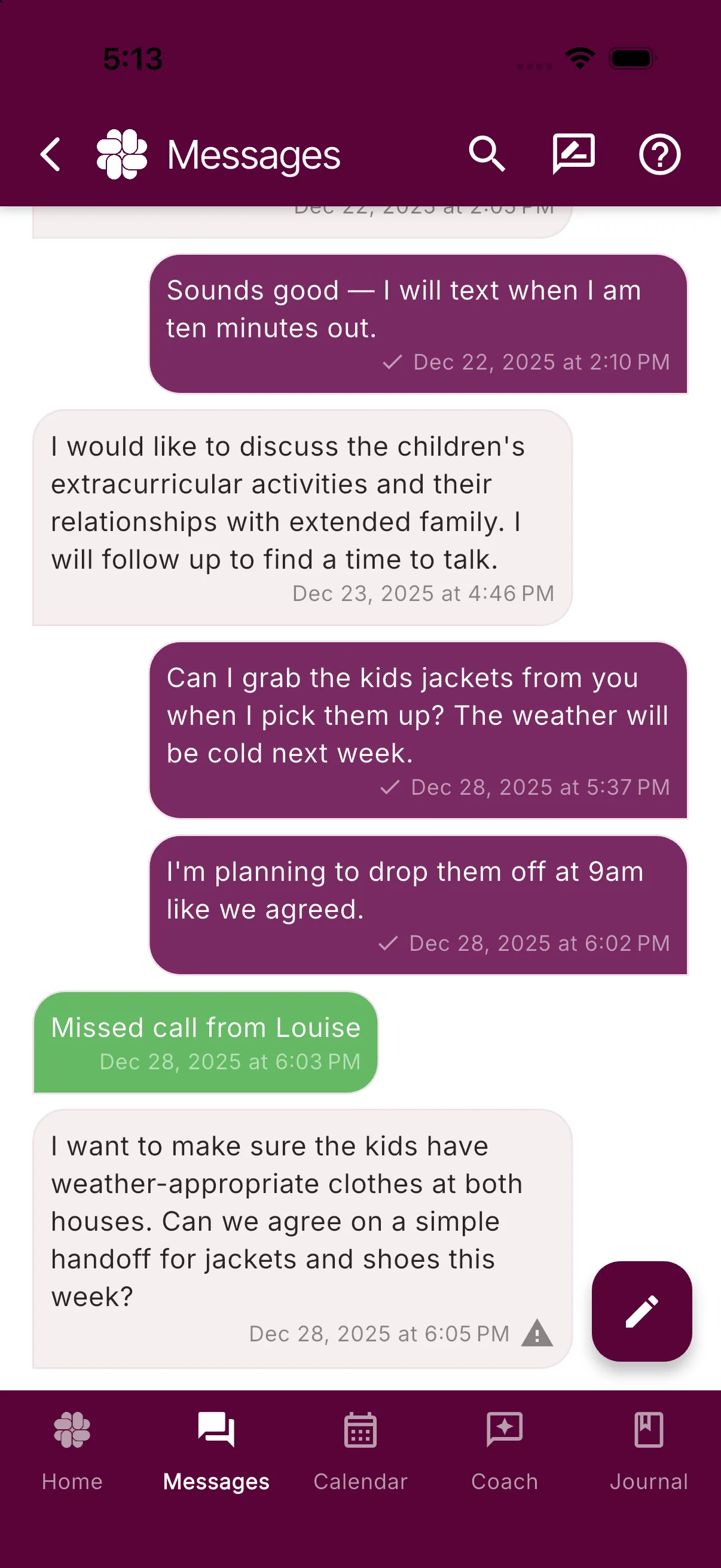
System messages can tell you about:
- Missed calls or calls that could not connect because no minutes remained
- Schedule changes and calendar approvals from your coparent
- New shared tasks or expenses
- Shared Binder changes
Tap a system message to open the related screen when an action is available, such as a calendar change waiting for approval. Other system messages open a System Message detail sheet.
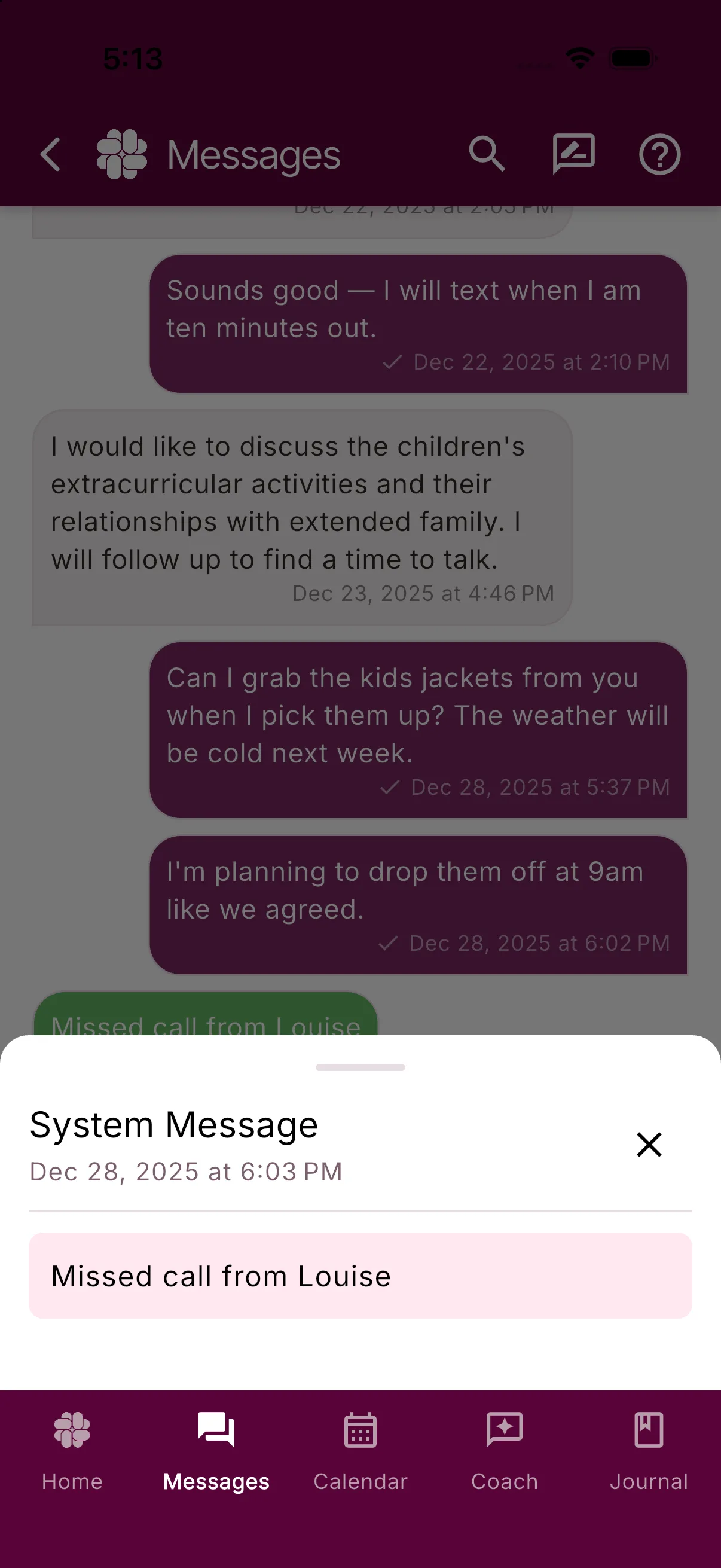
A system message was not typed by your coparent, although it may describe an action they took in a shared part of BestInterest.
Can I React To Messages In BestInterest?
BestInterest does not send tapbacks. Incoming reaction text appears only when a phone or carrier delivers it as a message.
BestInterest does not offer outgoing message reactions or tapbacks. Send a short written reply when you want to acknowledge a message or confirm a decision.
In Solo Mode, your coparent’s phone may turn a reaction into an SMS such as “Liked” followed by quoted text. If the carrier delivers that as a message to your Boundary Line, BestInterest can display it as part of the conversation. Reactions are not guaranteed to arrive as a separate message, and the format varies by phone and carrier.
A written “Yes, pickup at 5 pm works” is easier to interpret than a thumbs-up when the agreement matters. BestInterest’s message exports and reports preserve the messages actually received; they do not turn an ambiguous reaction into proof of agreement.
Will BestInterest Send Messages On My Behalf?
BestInterest empowers coparents with AI-driven suggestions while ensuring you maintain full control over your messages for effective, child-focused communication.
You choose which personal messages to send. Tone Guardian and Coparent Coach can suggest wording, but a suggestion or saved draft does not send itself to your coparent.
When Tone Guardian is enabled, review the suggestion, edit or keep your own wording, and tap the send action. When review is off or bypassed, Send Message sends immediately.
Message Shield changes your view of an incoming message. Filtering it does not send a reply to the sender.
BestInterest also creates system messages about shared actions, such as Calendar proposals, Tasks, Expenses, Binder changes, and call outcomes. Invitations, number-sharing actions, and enabled notifications can send their own notices. Those are separate from an AI-generated personal reply.
Can My Coparent's Message Appear In The Notification?
Yes. Turn on Show Message in Alert to include message text in push and email alerts. Leave it off if you do not want message content in previews.
Yes. By default a new-message alert keeps the text out, but one switch puts message content into your lock screen and email alerts.
What the alert says by default
A standard push notification reads New message from coparent with the body A new message is available. When BestInterest flags a message as urgent, the title changes to Urgent message from coparent. Either way, you open the app to read the words.
Turn on Show Message in Alert
- Open Settings > Message Notifications. The screen is titled Notifications.
- Under NOTIFICATIONS, turn on Show Message in Alert (its caption reads Display filtered message in notifications).
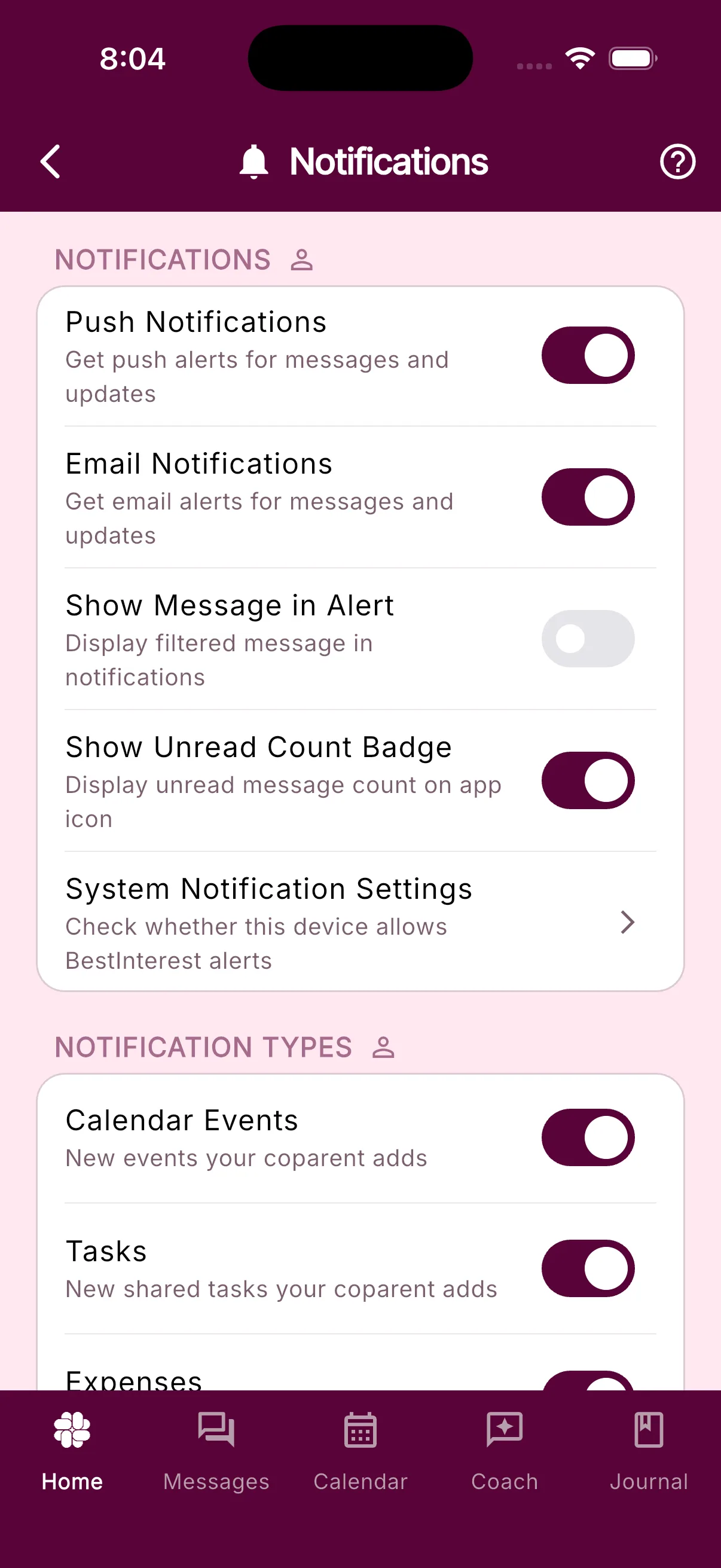
The switch is always on the screen, whatever your plan and whatever your notification frequency. It only matters while Push Notifications or Email Notifications is on; with both off, nothing is sent for it to change.
For the rest of this screen, including sounds, per-device delivery, and notification types, see Message notification options. If you cannot find Settings, see Where to find Settings.
Which message text appears
BestInterest normally uses the message text prepared for display after Message Shield has reviewed it. If that display text is unavailable, the notification service can fall back to the original message. Leave Show Message in Alert off if you do not want message content on your lock screen or in notification email. You can still open the message in the Messages tab and expand Original Message, as described in How to read and send messages.
A few system notices that quote your coparent, such as an expense flagged for discussion or a Binder change, also hold back the quoted text until you turn the switch on.
Digests and email
The switch shapes every kind of message alert:
- Instant delivery: the alert body is the message text selected for the notification, with the fallback described above.
- Hourly, Daily, or Weekly digests (chosen under SMART SILENCE on the same screen, Protect and higher): the body is the newest unread message, followed by a count such as (and 2 more messages). With the switch off, a digest reads You have 3 unread messages from your coparent’s name.
- Email Notifications: the email includes a line that starts Here is [name]‘s filtered message, followed by the text selected for the notification. With the switch off, the email repeats the generic wording.
Your phone’s own lock-screen preview setting still applies on top of this. If iOS or Android is set to hide previews, the text stays hidden until you unlock.
How Does BestInterest Help Me Avoid Arguments?
Discover how BestInterest leverages AI to enhance your communication. Filter negative language and receive coaching for child-focused, constructive replies.
BestInterest uses AI to filter out emotionally charged or negative language from messages before you see them. It also provides real-time coaching on your replies, helping you craft constructive, child-focused responses. By focusing communication on what’s important, BestInterest minimizes the chances for escalation.
Will I Get My Ex’s Texts On My Phone And The App?
Where messages arrive depends on whether your coparent uses BestInterest, texts your Boundary Line number, or texts your personal number.
Where a message arrives depends on which number or service your coparent uses:
- In Collaborative Mode, messages sent by your linked coparent in BestInterest arrive in the Messages tab.
- In Solo Mode, SMS sent to your Boundary Line number arrives in the BestInterest app. Boundary Line is available with Connect, Protect, and Protect Plus.
- SMS sent to your personal phone number stays in your phone’s regular messaging app. BestInterest cannot forward those personal-number texts into the app.
You should not receive a duplicate in your regular SMS app when the message was sent through BestInterest or to your Boundary Line number. A separate SMS appears on your phone only when your coparent sends it to your personal number.
Keep future messages in BestInterest
Give your coparent your Boundary Line number, or ask them to use the BestInterest app with you in Collaborative Mode. Messages they continue sending to your old personal number remain outside BestInterest.
You can find and share your Boundary Line number under Settings > Coparent Connection.
Calls
Set up Boundary Line and video calls or troubleshoot calling.
Why Isn't Boundary Line Available In Collaborative Mode?
Boundary Line is built for Solo Mode. Learn what changes when you switch to Collaborative Mode and use in-app audio and video calls instead.
Boundary Line was designed for Solo Mode, so one parent can use BestInterest even when their coparent does not use the app. It gives the Solo Mode user a BestInterest phone number while the other parent continues using ordinary texts and phone calls.
If you switch from Solo Mode to Collaborative Mode, you will lose your Boundary Line and its assigned phone number. You will gain secure in-app audio and video calls between your linked BestInterest accounts.
When your coparent is willing to use BestInterest with you, in-app calling provides a better experience because both parents can place or receive audio and video calls inside the app. If your coparent is not ready to join, remain in Solo Mode to keep using Boundary Line.
Related articles
Calendar, Tasks & Expenses
Organize schedules, parenting plans, responsibilities, and shared costs.
What Is A Disputed Transaction?
Learn what a disputed transaction means in BestInterest and how it appears in your balance, history, and reports.
A disputed transaction is a shared expense or reimbursement that a co-parent marked as needing discussion. The transaction is not deleted, but BestInterest does not treat it as agreed while the dispute is open.
What you see in the app
- Agreed Balance: The disputed amount is not included in the balance showing what either parent currently owes.
- Yellow disputed box: The box shows how many transactions are disputed and their total recorded amount.
- Transaction history: The transaction remains visible with a Disputed status. Open it to see who disputed it and the reason they provided.
- Monthly totals: The disputed amount is identified separately from agreed expenses.
What appears in exports and reports
Disputed transactions remain in expense exports and verified expense reports so the record stays complete. They are labeled Disputed and are excluded from the Agreed Balance and agreed category totals while the dispute is open.
How a dispute is resolved
The person who disputed the transaction can open it and choose Resolve Dispute. Once resolved, the transaction returns to the agreed ledger and is included in the balance calculations again.
If a transaction needs discussion, use the dispute reason to explain the specific amount, split, or charge that needs review. Your co-parent will see that reason in the transaction details.
Reports, Exports & Records
Find, document, export, and share messages, calls, journal entries, photos, and files.
How To Use The Custody Binder
Learn how to organize important child and household information, choose what to share, attach files, and find Binder items quickly.
The Custody Binder keeps important child and household information in one searchable place. You can use it for contacts, insurance details, school information, medical information, and related files. For a feature overview and plan comparison, see the Custody Binder product page.
Add a Binder item
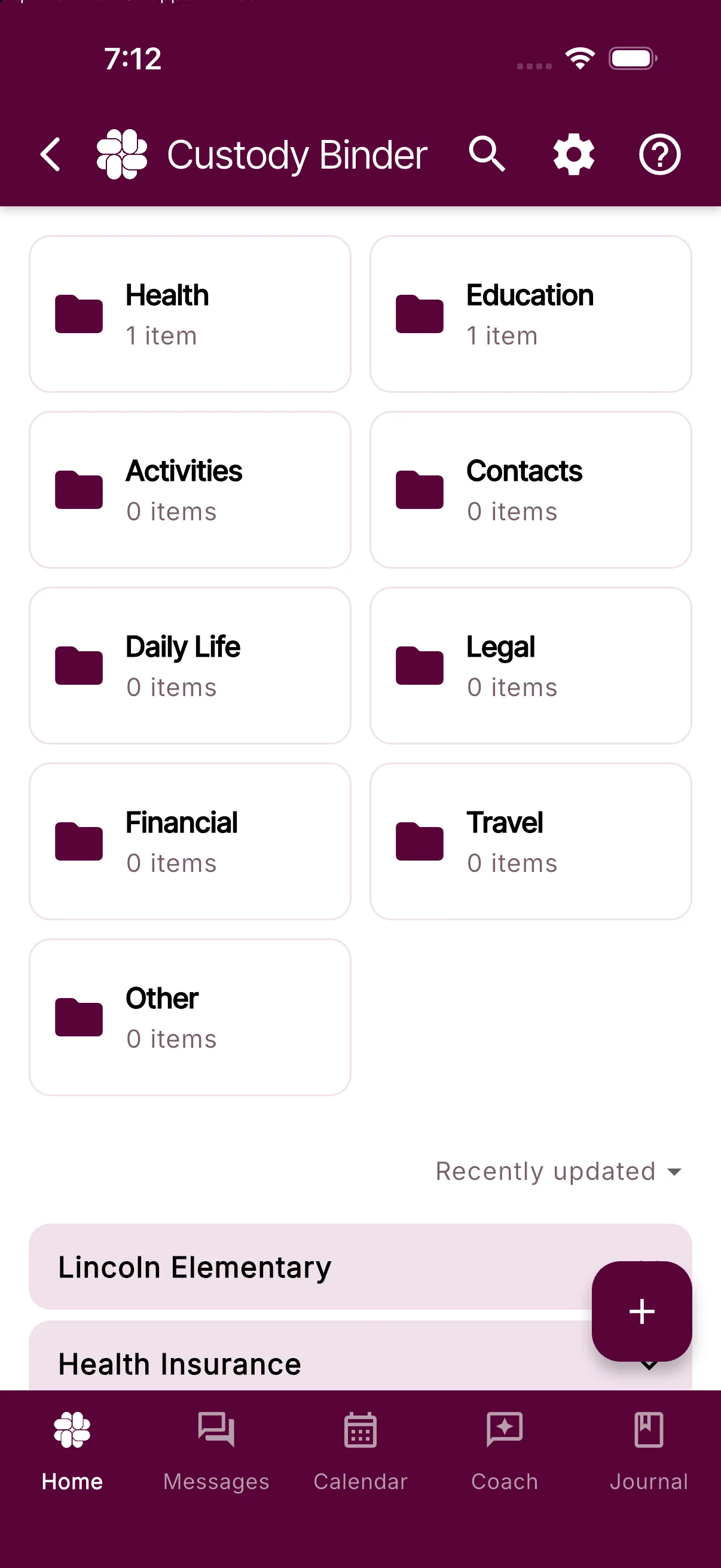
- Open More Tools > Binder and tap Add to Binder.
- Choose a built-in card type, a family custom card type, or Document to upload or scan a file.
- Choose Private or Shared. New items are private by default.
- Add a title and select a category.
- Choose the children the item relates to. All is selected by default, or you can select one or more individual children.
- Fill in the available details and add optional notes.
- If Magic Tags are available with your plan, leave them on for automatic tag suggestions or turn them off for this item.
- Tap Save.
Built-in card types include Contact, Insurance, School Details, Doctor Visit, Prescription, and Allergy. Their field names are already set up for you; you add or edit the values.
Choose what your coparent can see
- Private items are visible only to you.
- Shared items are visible to your connected coparent.
- Only the person who created an item can change it between Private and Shared.
- Your coparent can edit a shared item you created only when Allow my coparent to edit Binder items I create is enabled in Binder Settings under Settings > Custody Binder.
- Shared items have an update history so both coparents can see when the item changed.
Tags, Magic Tags, and favorites are always personal to your account. They help you organize the Binder without changing what your coparent sees.
Find an item
Tap Search in the Binder to search titles, details, and notes. You can also narrow the results by:
- Favorites
- Personal tags
- Category
- Child
- Private or Shared visibility
Tap the Favorites tag in Search to show your favorite items immediately.
Plan access and Selected Binder PDFs
Manual Binder items and Selected Binder PDF exports are included on the Free plan. When you create a Selected Binder PDF, you choose the items to include. The PDF contains their current details, your personal tags, and an attachment index; original attached files remain separate.
Connect and higher plans add file uploads and custom card types. You can choose a file already on your device, take a photo, pick an image from your photo library, or scan a document.
Protect and higher plans add optional Binder Magic Tags. Magic Tags suggest private organizational tags for an uploaded file. They do not extract facts into Binder fields, and the suggestions are not shared with your coparent.
Create a verified Binder report
Open More Tools > Reports > Binder for a verified PDF of your accessible current items. This is separate from the free Selected Binder PDF described above. Verified reports require Connect or higher and use the report allowance: Connect includes 10 per month; Protect and Protect Plus remove the cap.
When both scopes exist, use Include Private Items to add your private items to the shared report. If only private items are available, they are included automatically. An optional Include Activity Log adds recorded shared Binder changes; its dates filter the activity log, not the current item list. The report lists attachment information rather than embedding the original files.
Generated PDFs appear in Report History and expire after 90 days. Download attachments separately when the recipient needs the originals, and review private content before sharing any file.
Edit or manage an item
Open an item or use its menu to see the actions available to you. Depending on the item and your permissions, you can:
- Edit its title, category, children, details, or notes
- Add or open an attached file
- Add personal tags or mark it as a favorite
- Make it Shared or Private
- View update history
- Delete it
Custom card types
Connected families can create reusable card types in Binder Settings under Settings > Custody Binder, or from Add to Binder > Manage Card Types. A custom card type appears in the Add to Binder menu for both you and your coparent.
Custom card types are a Connect feature. Existing family card types remain visible in the menu, and BestInterest will show the plan prompt if your current access does not include using or managing them.
Older documents in the Binder
Older Shared Docs are carried forward automatically. BestInterest migrates eligible files into regular shared Binder items. After migration, you can edit or delete a document you own; a document created by your coparent follows the same shared-editing permissions as other Binder items. If a document has not yet been migrated, choosing Edit prepares it for editing. Preserved frozen snapshots stay read-only.
New Binder items require a category, and editable items let you update their category and child selection.
Are The Original Texts My Ex Sends Me Saved In The App?
Discover how the BestInterest app securely saves original texts from your ex, allowing you to access unfiltered messages for reference and documentation.
Yes. BestInterest keeps the original wording of messages it receives, including messages Message Shield filters for your view. Open a message to find Original Message; filtered wording and the original remain separate.
See how to find the original message for reveal, report, and professional-sharing options.
This applies to messages handled by BestInterest. Texts sent to your personal number or conversations in another app are not automatically imported. Learn where messages arrive.
Billing & Plans
Understand trials and subscriptions, restore purchases, cancel, or request a refund.
How Do I Cancel My Subscription?
Cancel a BestInterest subscription billed through Apple, Google Play, or RevenueCat's hosted web checkout.
If you decide that BestInterest is no longer needed, cancel through the provider that billed the subscription. Using BestInterest on an iPhone does not by itself mean Apple billed you. Check your purchase receipt or subscription list if you are unsure. Canceling one provider does not cancel a separate subscription with another provider.
Here are the steps to cancel your subscription:
For iOS (Apple) Users:
- Open the Settings app on your device.
- Tap your name, then select Subscriptions.
- Find BestInterest in your list of subscriptions.
- Tap Cancel Subscription and confirm when prompted.
For Android (Google Play) Users:
- Open the Google Play Store on your device.
- Tap your profile icon, then Payments & subscriptions > Subscriptions.
- Select BestInterest from your list of active subscriptions.
- Tap Cancel Subscription and confirm your choice.
For Web Billing Users:
- Find a BestInterest RevenueCat Billing confirmation, renewal, or invoice email sent to the address used at checkout.
- Open the Manage subscription or Customer Portal link in that email.
- In the portal, select your BestInterest subscription, choose Cancel subscription, and confirm. Check that it shows the subscription will end after the current billing period.
- If you cannot find the email or open the portal, contact BestInterest support with your BestInterest account email. Include an invoice or receipt number if you have one.
Canceling stops the next renewal. It does not delete your BestInterest account or automatically refund a previous charge. For trial, expiration, restoration, and refund details, see How do free trials, upgrades, cancellations, and plan expiration work? and How do refunds, purchase restoration, and billing problems work?.
Privacy & Safety
Control what you see and share while protecting your privacy and emotional safety.
Can You Help If My Coparent Gaslights Or Lies?
Discover how BestInterest’s Coparent Journal and uneditable message history provide a reliable record of interactions, empowering you to combat gaslighting effectively.
BestInterest helps you return to the record when an exchange is disputed. Messages handled by BestInterest keep their original wording and timestamps, and your private Journal lets you record what you observed.
Message Shield can identify concerning language, and Coparent Coach can help you consider a response. AI cannot determine whether someone is lying or establish what happened outside the app.
Keep observations separate from interpretations in your notes. You can export selected records for review with a professional; a report verifies the stored record rather than the truth of every statement in it.
What Happens When My Ex Sends Me A Nasty Text? Do I Still Have To Read It?
Use Message Shield to see the child-focused content, leave the original hidden, or send it to a trusted professional without reading it.
You do not have to read harmful or emotionally charged wording to find the child-focused information in a message.
Message Shield, included with Protect and Protect Plus, filters hostile or off-topic content and shows you the parts relevant to your children. Turn on Mediator Voice under Settings > Message Shield to have incoming messages restated in a calm, third-person voice.
Leave the original hidden
When a message has been filtered, open it and the child-focused body is labelled Filtered Message or Message Shield Summary, depending on your settings. The exact wording remains under Original Message, hidden behind Tap to view original message by default.
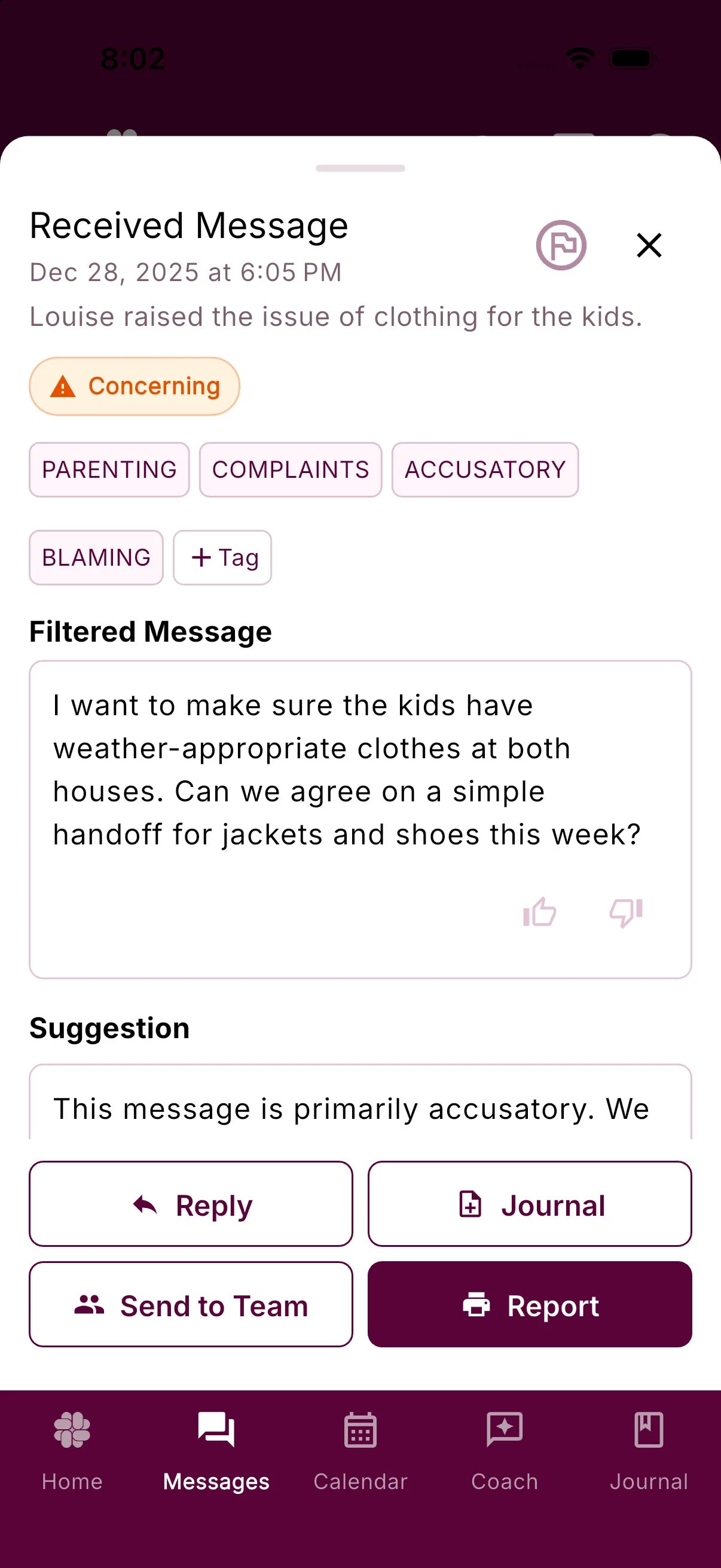
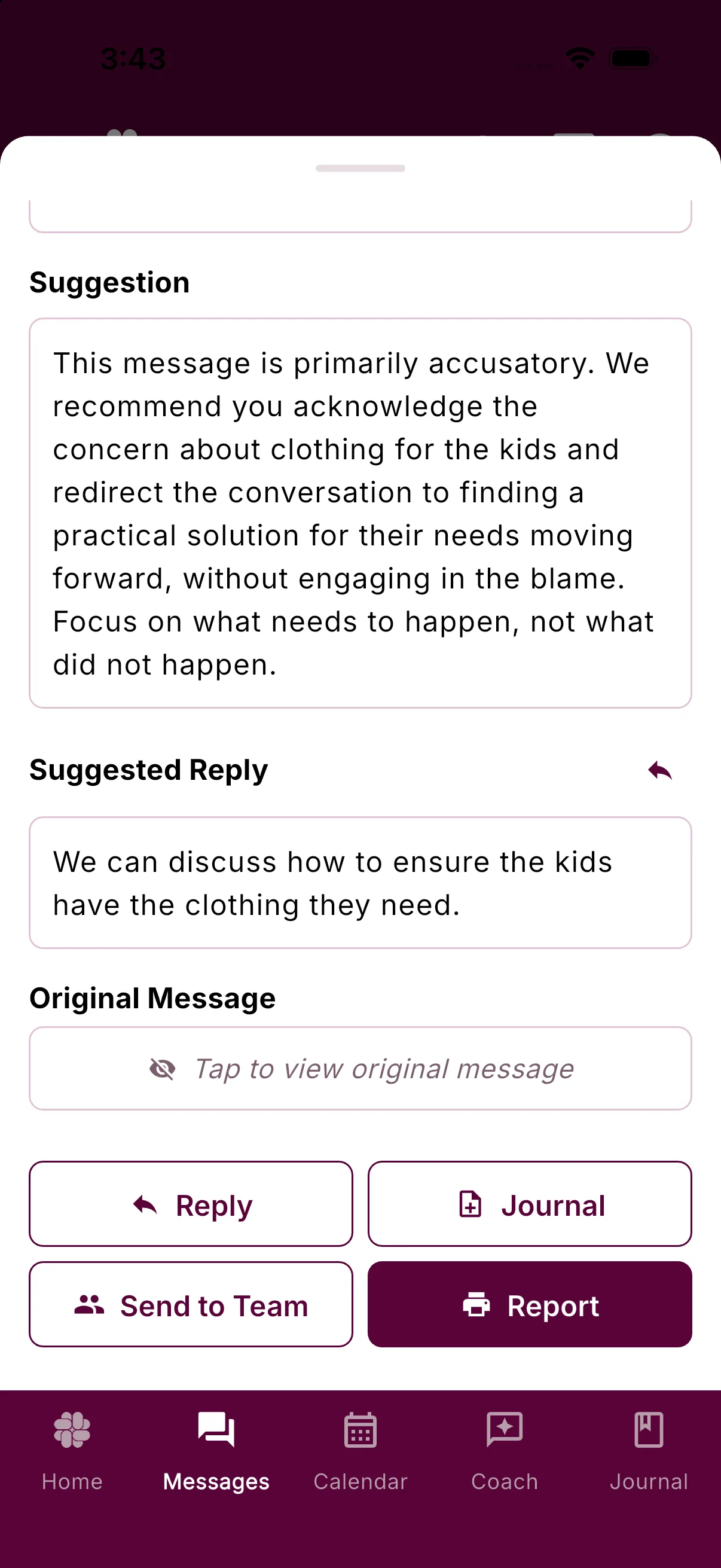
You can reveal it later, or leave it unread. The original remains stored for your records either way.
Ask a professional for help without reading it
Open the message and tap Send to Team. Choose a therapist, coach, attorney, or another person on your Professionals Team, and BestInterest forwards the original wording to that person. You do not need to reveal it first.
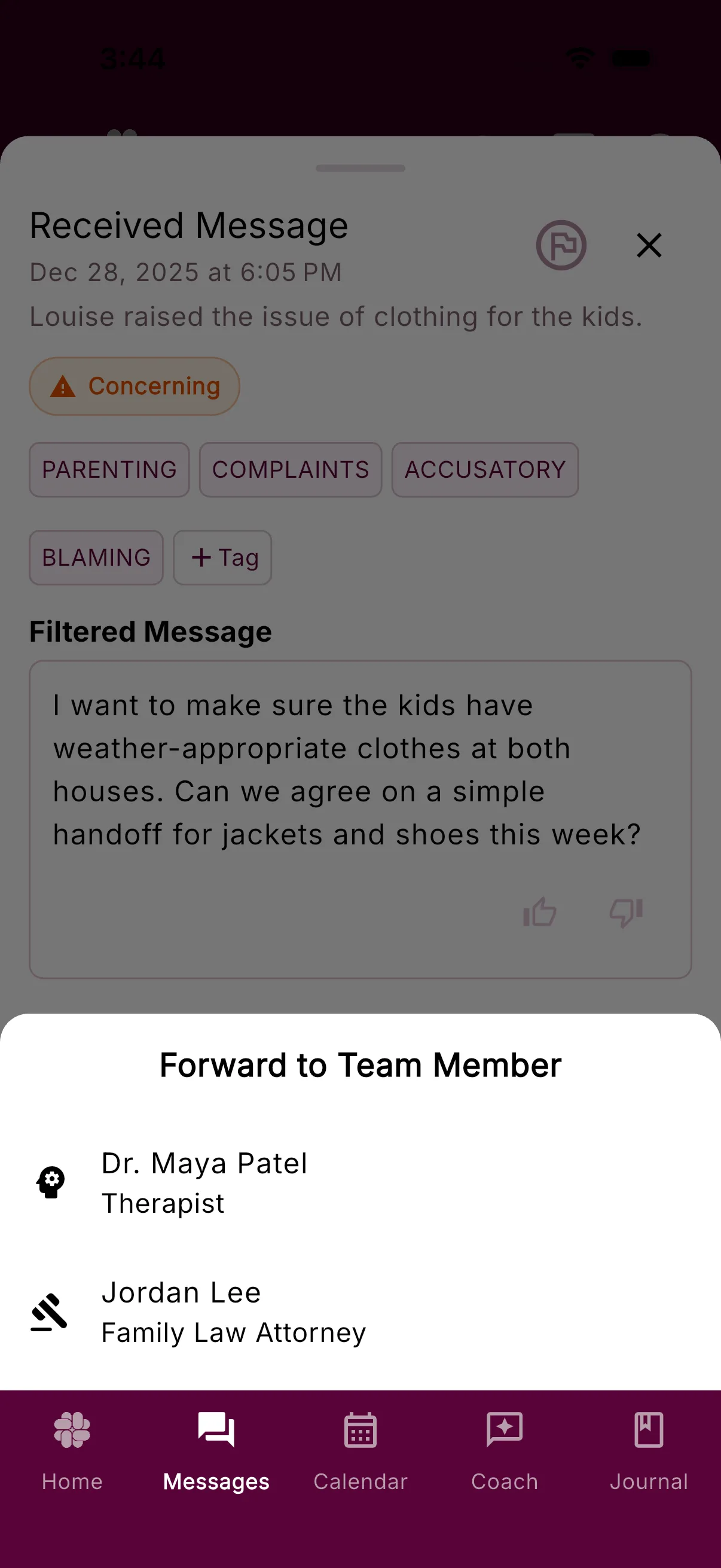
If your team is empty, the app offers to take you to Settings > Professionals Team to add someone.
Can BestInterest Help If I'm Coparenting With An Abuser?
Navigating co-parenting in high-conflict situations can be challenging. Discover how BestInterest's features can support effective communication and emotional well-being.
Yes. BestInterest gives you tools to reduce exposure to harmful communication, keep records, and choose when to engage—even when your coparent will not use the app.
Reduce harmful wording and interruptions
On Protect and Protect Plus, Message Shield filters incoming messages and keeps the original available separately. Emotional Safety settings let you hide original wording, blur images, and reduce notification pressure.
Smart Silence can hold routine alerts for a digest while messages classified as urgent bypass that schedule. Urgency detection can make mistakes, and alerts still require an enabled notification channel and working device settings. It is not a guarantee that an emergency will be detected or delivered.
Get perspective before responding
Coparent Coach offers private guidance. Tone Guardian, included with Protect and higher, reviews outgoing messages before you choose what to send.
Keep a clear record
Messages handled by BestInterest retain their original wording. Use the private Journal to record your observations and Verified Reports to share selected records with a professional. BestInterest cannot verify that every statement or allegation is true.
In Solo Mode, Boundary Line adds SMS and phone communication on Connect and higher. Your coparent continues using their phone. See how to use BestInterest independently.
These tools support your boundaries and documentation. Follow any applicable communication order or safety plan; contact local emergency services for immediate danger.
How Secure Is My Communication On BestInterest?
Discover how BestInterest safeguards your messages with robust encryption and secure storage, ensuring your communication remains private and trustworthy.
BestInterest protects app communication with encryption in transit, protected storage, authenticated access, and permissions for private and shared records.
App communication and storage
Connections between the BestInterest app and our services use HTTPS/TLS. Stored records use the protections provided by our cloud infrastructure. Your account’s access controls determine which records you can open; your connected coparent can access shared communication and family records.
BestInterest processes content to provide messaging, filtering, coaching, reports, and support. Authorized service providers and personnel can process information for those purposes as described in our Privacy Policy. This is not a claim of end-to-end encryption where only the two parents hold decryption keys.
Boundary Line texts and calls
Boundary Line uses phone carriers for SMS, MMS, and telephone calls. Those carrier portions do not receive the same app-to-service HTTPS protection. Messages sent to your personal number remain outside BestInterest.
Control who sees records
Your coparent cannot see private Journal entries, Coach conversations, or unsent drafts. You can separately approve categories for the Professional Portal or share an individual record with your Professionals Team. Review what your coparent can see and manage professional access.
Use App Privacy Lock on a supported phone, keep message previews off if you want content hidden on the lock screen, and protect downloaded reports and shared Calendar links. Files you send outside BestInterest are controlled by their destination.